Main Menu
Our game’s UI design started with the main menu because we decided that the first game test would include only the main menu, with relatively fewer in-game functions. Therefore, my design also began with the main menu.
Starting with the main menu has another advantage: this order is consistent with the tutorials I found, all starting with the main menu UI.
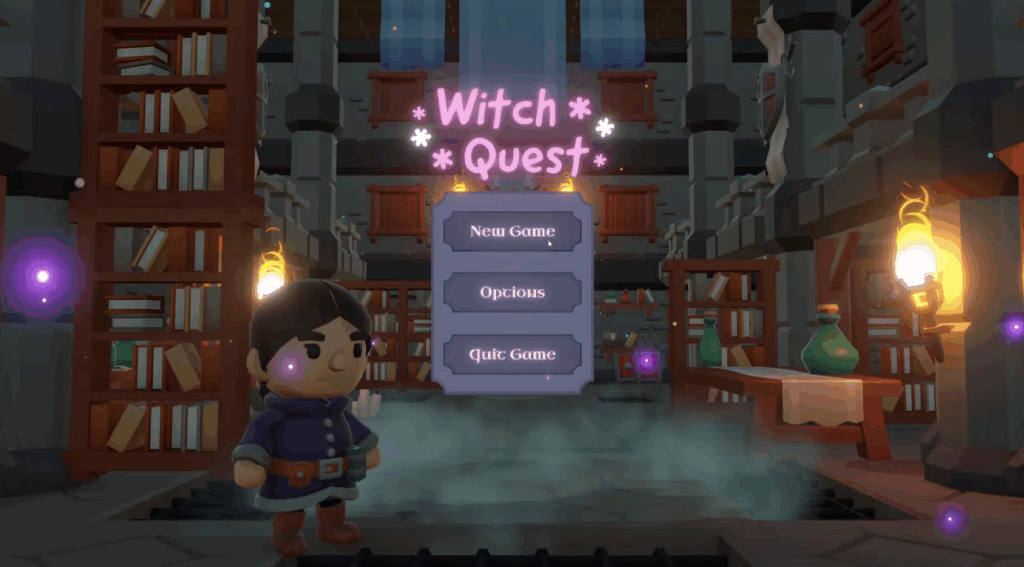
Basically, all tutorials use this structure and shape for game UIs. However, Lett’s GDD clearly describes what the main menu should look like. So, I plan to study the production logic in the tutorial and then think about how to create a main menu that suits our game. Because once we understand how each button is created, we can flexibly adjust its position.
I discovered that it’s possible to create buttons directly in Unity. Then, you just need to adjust the game scene order and connect the “Start Game” button to the location you want the player to jump to. This location doesn’t even have to be a game level. This means we can make the player jump to an animation or background story segment after clicking “Start Game,” and then jump back to the game after the animation finishes. This isolates the background story or animation segment and makes later adjustments easier.
After understanding this logic, I started working on our main menu UI.
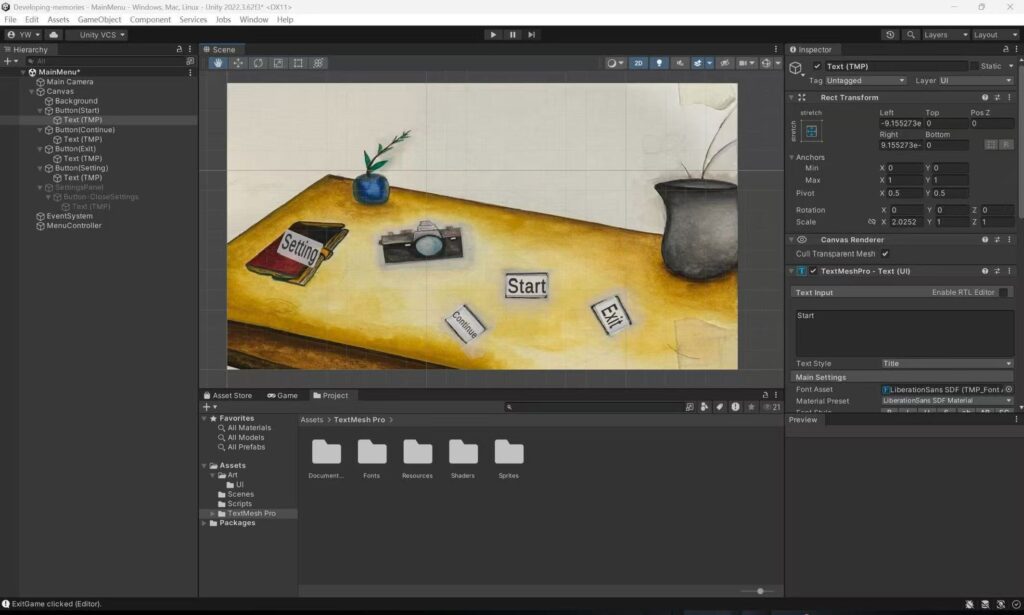
The first version of the main menu looked something like this. Since the background image fixed the button positions, I adjusted their locations.
The “Start Game” and “Exit Game” buttons are essential. In addition, I’ve added settings and “Continue Game” buttons. The “Continue Game” button is included because, given our current narrative, the game content is quite extensive, and we might need to add a save function later. Therefore, I’ve provided a way to allow for future additions or modifications.
The button was added because we plan to add background music to the game, but it’s not finalized yet. So, I created this feature first, so that when we add background music later, we can simply add a controller here to allow players to control the volume of the background music.
In-game
Regarding the in-game UI, my first thought was to consider what players need to do and what they need to see.
In our game, players need to interact with NPCs, collect objects, and use objects. Therefore, the UI I create needs to have these basic functions: an inventory, a dialogue interface, and perhaps some interaction prompts.
Based on the functionality required for our first test, which involves players interacting with two NPCs, I chose to create the dialogue interface first.
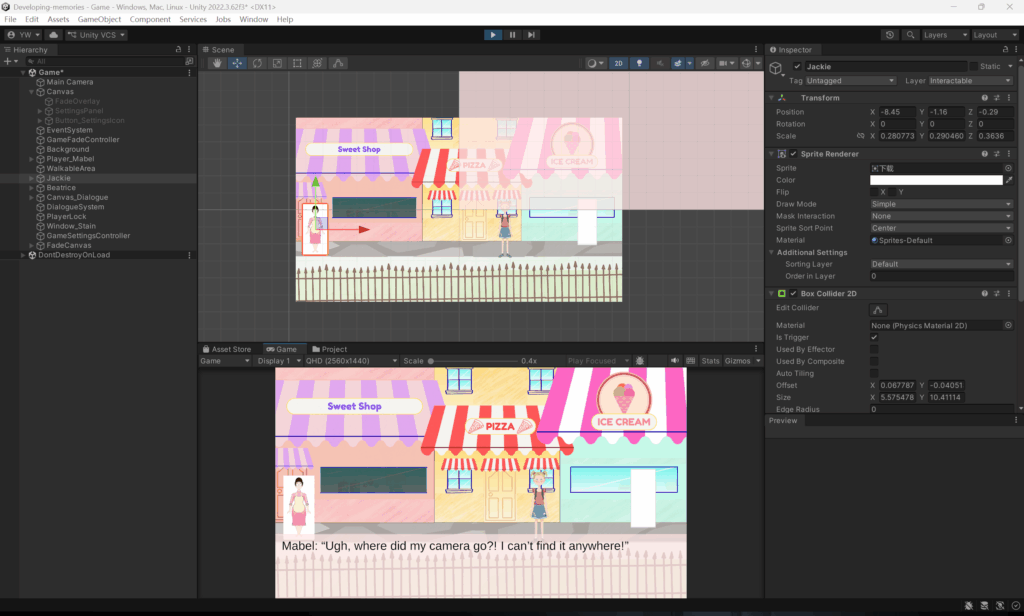
This is currently the UI of our game, but I will continue to update it. This is not our final version.