
08 April Update - Berry Task UI Structure and Core Logic
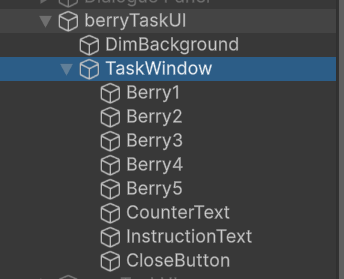
After finishing the Figma prototype, I started building the berry task UI structure in Unity. The UI is based on one main berryTaskUI object, which contains DimBackground and TaskWindow. DimBackground is used to darken the gameplay background, while TaskWindow works as the main task panel.
Inside TaskWindow, I placed five berry buttons: Berry1 to Berry5. These berries are all clickable buttons. The UI also includes CounterText, InstructionText, and CloseButton. CounterText shows the current harvesting progress, InstructionText explains the task goal, and CloseButton allows the player to manually close the task window.
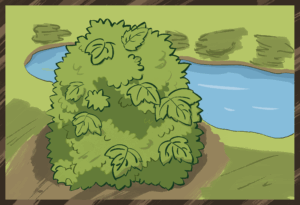
The UI art assets were created by me. I first used Figma to define the window scale, berry icon size, and button placement. Then I drew the final berry icons and task UI assets in Procreate. This helped me keep the asset sizes consistent, so future mini games can reuse a similar UI structure.
Berry Button Interaction
The main harvesting logic is controlled by BerryTaskManager. At the start, the script finds the five berry buttons inside TaskWindow and adds a click event to each button.
When the player clicks a berry, that berry is hidden, showing that it has been picked. At the same time, the system increases clickedCount and updates the counter.
					berry.gameObject.SetActive(false);
clickedCount++;
UpdateUI();
Counter Update
The counter is controlled by CounterText. Every time the player clicks a berry, UpdateUI() refreshes the current task progress.
counterText.text = $"{clickedCount}/{total}";
Here, total is set to 5, so the goal is to collect five berries. When clickedCount reaches 5, the system marks the task as completed.
					if (clickedCount >= total)
{
    taskCompleted = true;
}
Berry Bush State Switch
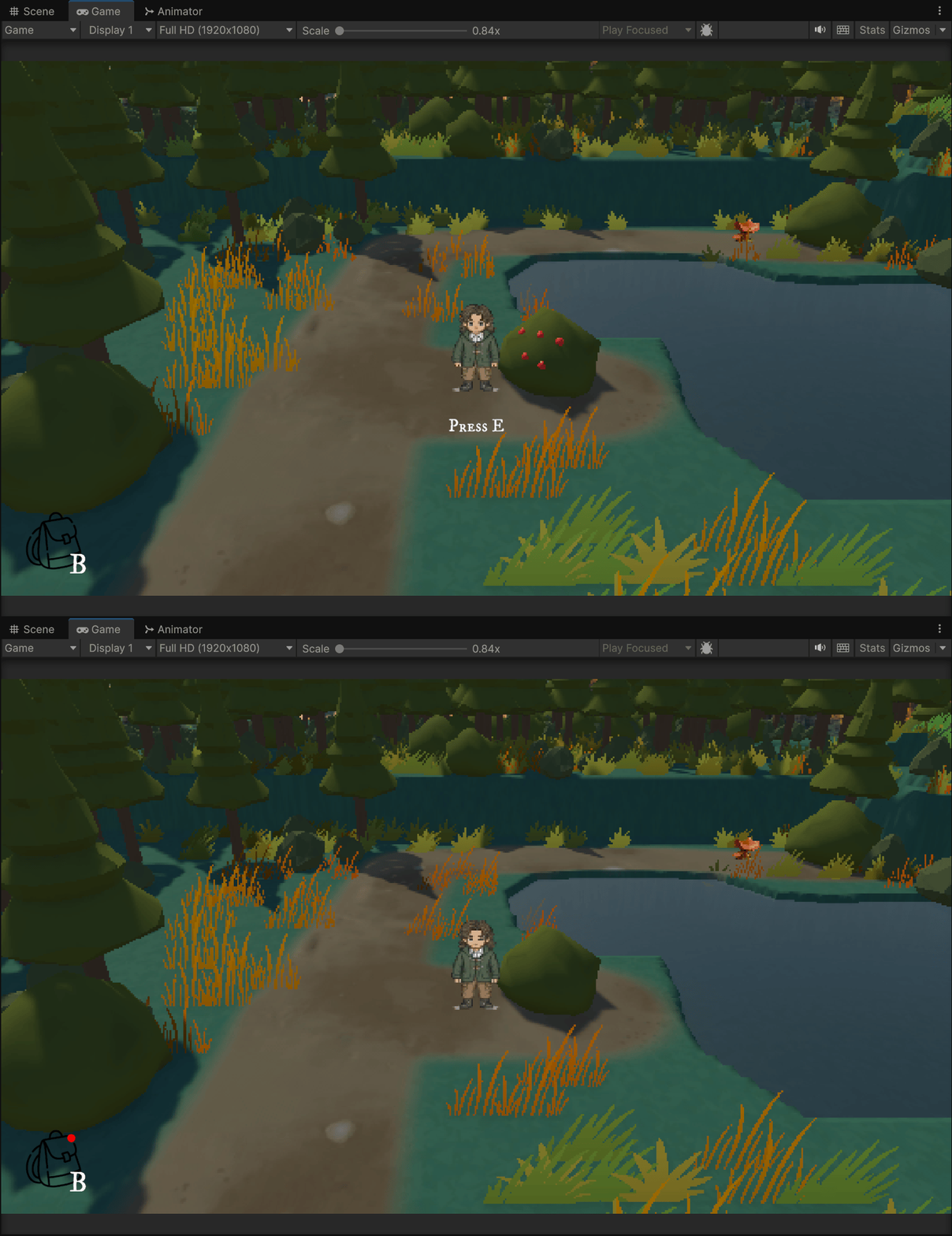
Besides the UI interaction, I also added a berry bush state switch in the scene. To make the completed task state clearer, I created two berry bush prefab states: WithFruit, which represents the bush before harvesting, and Empty, which represents the bush after harvesting.
This is controlled by BerryShrubSwitcher. At the start, the bush shows the fruit version. After the task is completed, the script hides WithFruit and shows Empty.
					public void SwitchToEmpty()
{
    withFruitObj.SetActive(false);
    emptyObj.SetActive(true);
}
Connection to Other Systems
This berry task is also connected to the existing task and inventory systems. After the task is completed, the script sends the Berry item to the player’s inventory. However, this part has already been explained in Inventory & Reputation & Task System, so I only mention it briefly here as the result of the task.
The logic for pressing E to open the task UI also reuses the previous Object & NPC Interaction System. The dim background, slide-in animation, and slide-out closing animation reuse the task window animation from Inventory & Reputation & Task System. Therefore, this page mainly focuses on the berry task itself: clicking berries, updating the counter, and switching the berry bush state.
=====================================================================
02 March Update - Berry Picking Mini Game Prototype
When creating the berry-picking task, I did not want the player to simply press E and receive the item immediately. Instead, I decided to turn it into a simple mini game. The idea was inspired by the short task interactions in Goose Goose Duck, where the player completes a small task by clicking a few objects.
Before building it in Unity, I first created a simple prototype in Figma. I mainly used it to test the size of the task window, the berry icons, the counter position, and the close button placement. This allowed me to check whether the interface was clear, while also helping me decide the size of the art assets for future similar mini games.
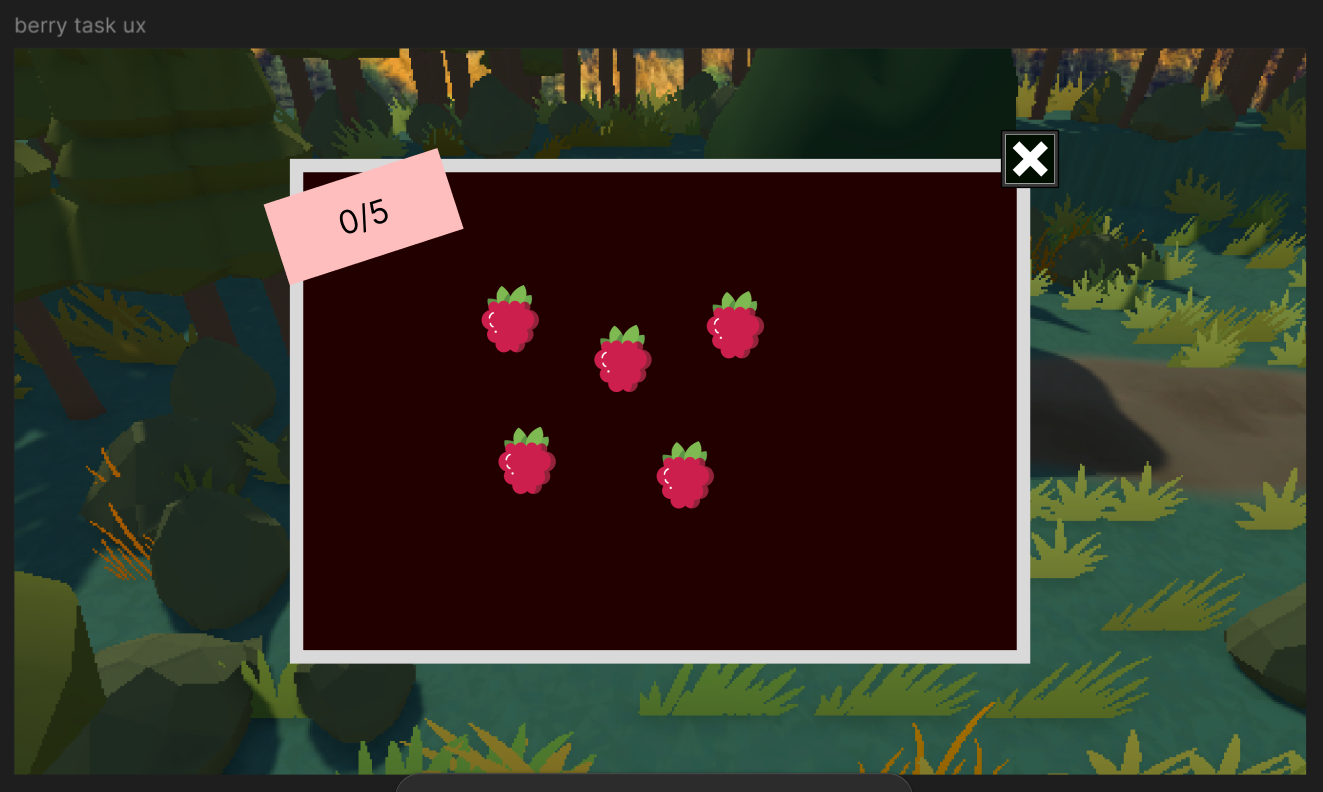
At the same time, I also evaluated the main functions needed for this task. The berry-picking task includes several key parts:
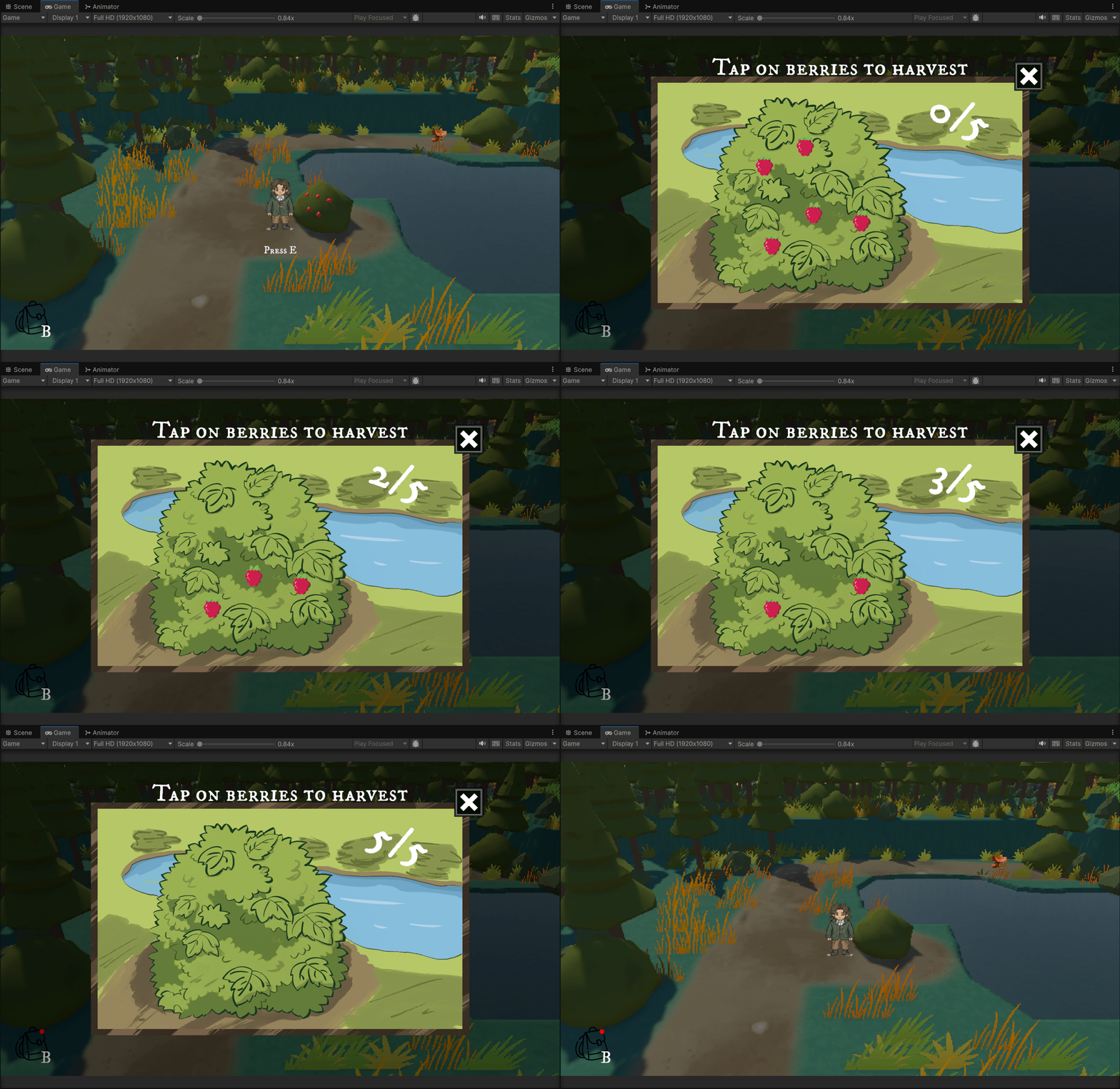
- The player walks to the berry bush interaction point and presses E to open the task UI.
- When the task opens, the gameplay screen becomes darker, and the UI panel slides into the screen with an animation.
- The berries are made as clickable buttons. When the player clicks a berry, it disappears.
- A counter is displayed on the right side of the UI and updates based on the number of berries clicked, for example from 0/5 to 5/5.
- The UI panel can be closed either by clicking the X button manually or automatically after the task is completed.
- After the task is completed, the berry bush changes from a fruit-bearing version to an empty version.
- Once the task is complete, the Berry item is added to the player’s inventory.
I also needed to consider some gameplay issues related to the task. For example, when the task UI is opened, the player’s keyboard movement input should be locked.