
After Jordan and Adam played a prototype of the platforming section of the game in semester 1, I noticed two things:
- The overall difficulty of the game was quite high
- Requiring a lot of “sight-reading” and hand-eye coordination
- They were quite uncomfortable with the key binds of the game
- Using WASD is a very FPS game keybind
- Using the mouse with the cursor active is quite misleading with the grapple
- The inability to use a controller heavily effect those who weren’t
Accessibility research
Due to this playtest, we had a conversation about accessibility in our game and I brought up the “assist mode” in Celeste, which gives the player the ability to:
- Slow the game speed
- Provide infinite stamina
- Allow for mor air dashes
- etc.
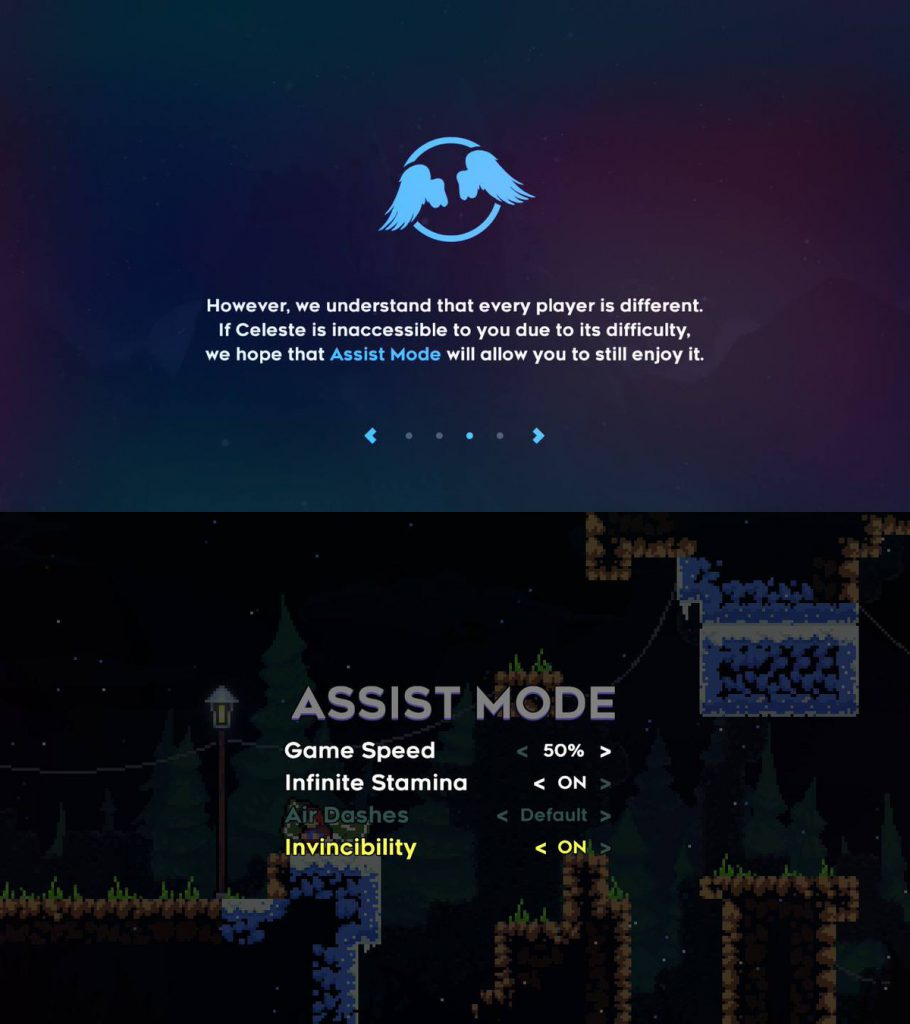
However, the developers explicitly state that the ‘difficulty is essential to the game experience’, which I believe is a great thing as develops hold the right to explain how their game should be experienced:
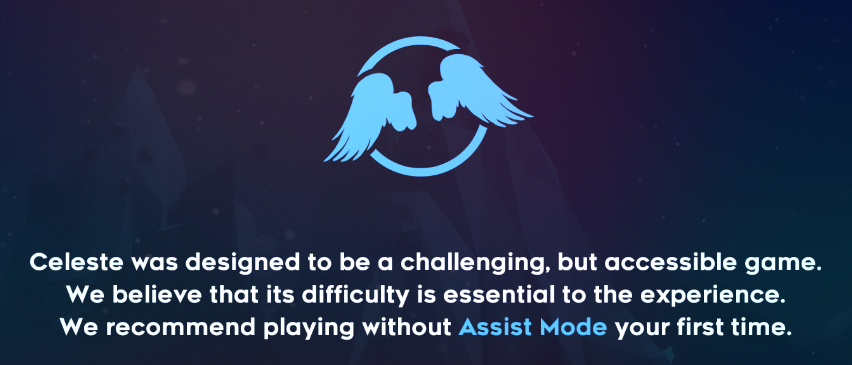
But allowing the opportunity to make the game easier for those who need it a great decision (Calling it assist mode vs easy mode is also a respectful choice). If there is enough time at the end of development, I will definitely look into implementing something like this.
Accessibility features
Controller Support
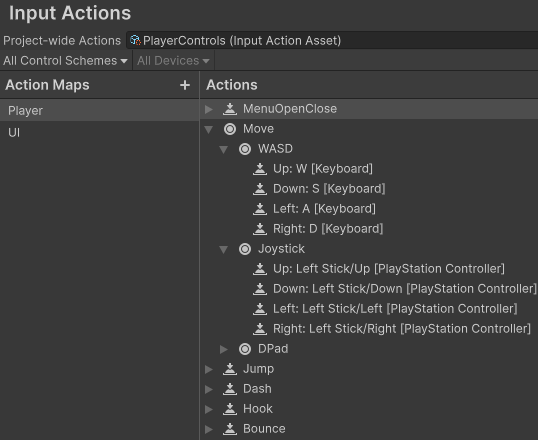
Thanks to Unity’s Input system, I can create an input action asset and assign multiple actions to one bind:
Then, I have a seperate Input Manager gameobject that reads these inputs:
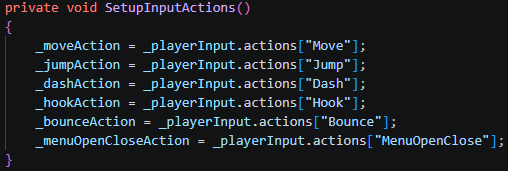
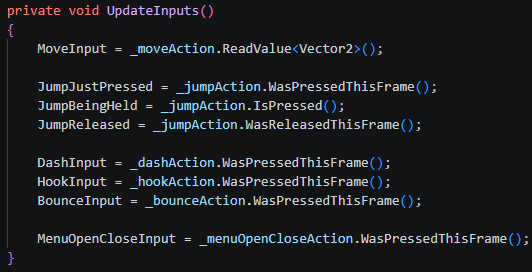
I, then, replace the input readings in my player controller script with these input in my Input Manager script:
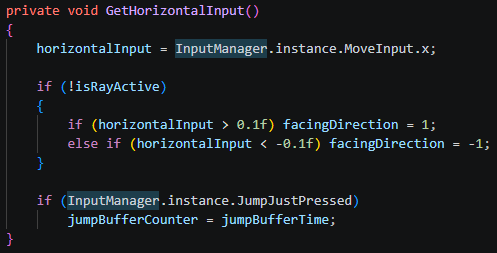
Rebinding Functionality
Another thing I can implement in the game right now is the ability to change binds, and have controller functionality. For this, I used the following YouTube tutorials:
Setting up the UI
In order to change the key binds, the player needs to have an interactable UI.
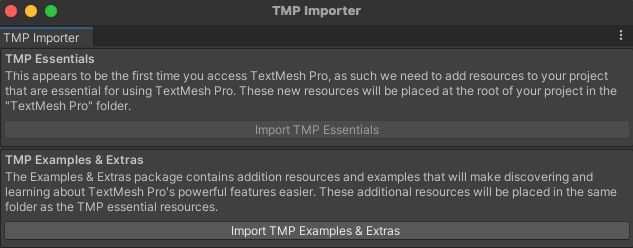
Importing TextMeshPro
TextMeshPro is a set of Unity tools for 2D or 3D text:
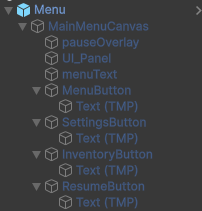
Which I can then use to add text to a UI canvas and to buttons (TMP stands for TextMeshPro):
Creating a menu script
This script need to contain the method to open and close the menu and the sections within the menu
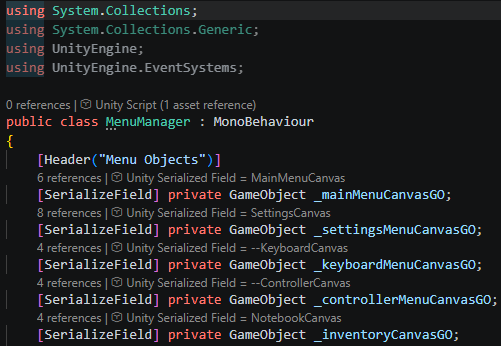
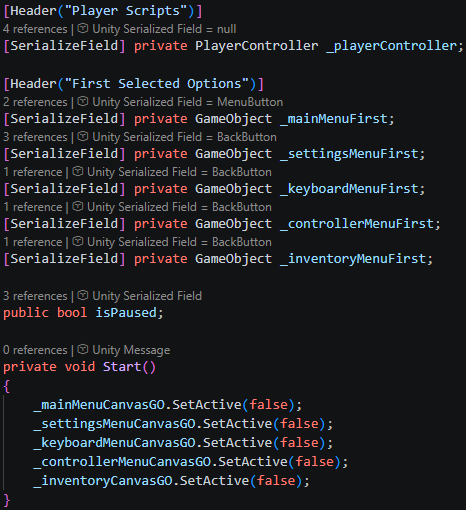
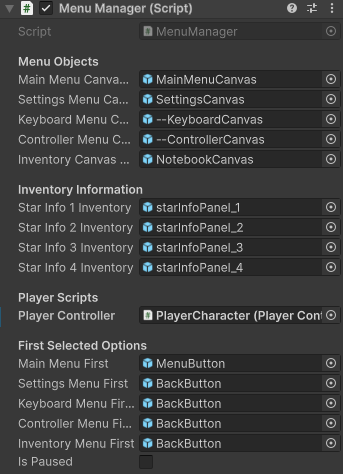
Controlling the UI
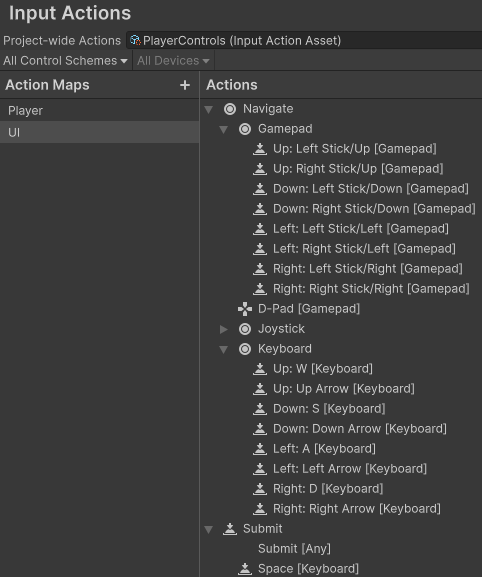
Because I am adding controller support, I need a way for the player to navigate the UI (As there is no mouse cursor for the controller). However, thanks to Unity’s Event System, I can call a SetSelectedGameObject() method to select a button regardless of the input method:
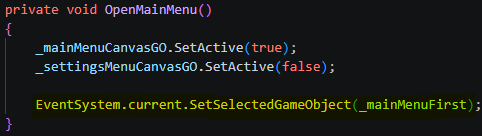
Which allows me to bind inputs using Unity’s Input System to navigate the UI:
Leave a Reply