Due to runtime errors and inconsistencies with my programming, leading up to our first playtest I chose to rewrite the script to the peacock minigame from scratch, using examples from CodeMonkey as a more firm reference. However, I kept all of the in-engine Unity assets and materials/shader logic intact.
Rewriting the Script
To begin, I corrected my inital error of having the script be built around the shape node that held the peacock material: rather, it should have been constructed around the camera, as it is what fires the raycast signal to the material.
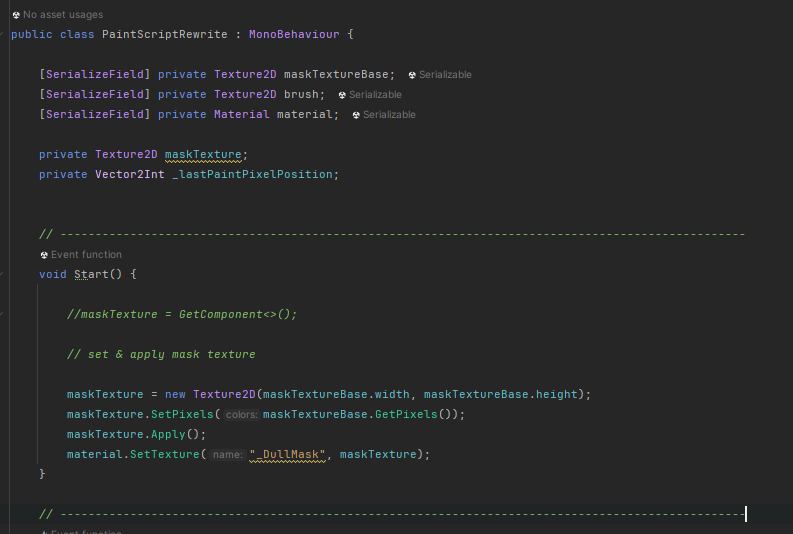
Most of the script is very similar to that of Development Log 2, but greatly restructured. To start, the camera in this version does not have to be fetched because it is being built within the camera node.
- The DullMask layer is instatiated as ‘maskTextureBase’, the PNG texture brushTex (used for painting the peacock) is instantiated as ‘brush’, and the peacock material shader as ‘material’.
- All of the relevant assets relating to textures and materials are assigned upon startup. This includes:
- maskTexture as a Texture2D class, which holds the width and hieght co-ordinates of the DullMask layer.
- retrieving the pixel colour data for the texture via getter and setter methods.
- setting the material texture as DullMask to overlay it onto the peacock material.
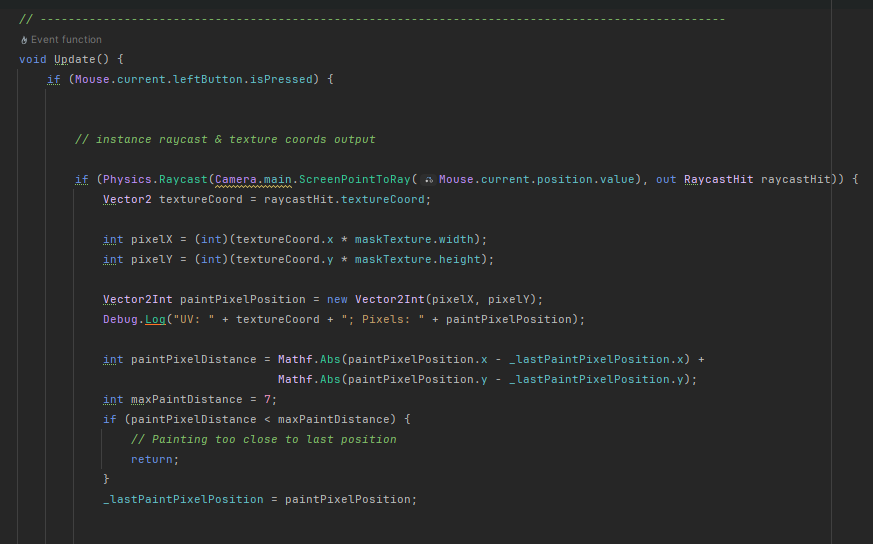
- Next is a revised iteration of the raycast script, in which upon lcicking the left mouse button, a raycast laser will be fired from the camera and onto the material at the mouse cursor’s positional value.
- The output co-ordinates of where the raycast hits the material are stored in variable ‘textureCoord’, and then are multiplied by the width and height values of the mask texture in the variables pixelX and pixelY.
- These numbers are then stored in a new variable, paintPixelPosition, which represents the pixels we want to remove the mask layer from. The debug log outputs these alongside the UV co-ordinates of the raycast.
- ‘paintPixelDistance’ exists to avoid painting too close to previous positions, which can very easily cause runtime errors. By subtracting the paintPixelPosition values from ‘_lastPaintPixelPosition’, setting a new integer ‘maxPaintDistance’ to a value of 7, and returning if maxPaintDistance ever exceeds paintPixelDistance, we can ensure that this never becomes an issue.
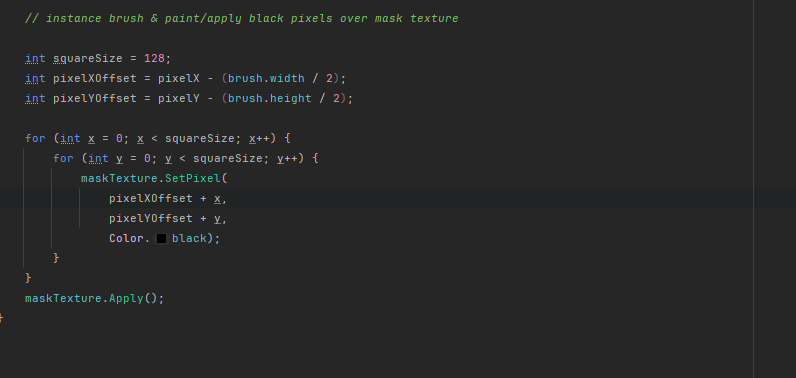
- Finally, the script that operates the brush itself. The brush is instantiated by creating values ‘squareSize’ and ‘pixelXOffset’/’pixelYOffset’ and applying them to the brush texture from earlier.
- Using for statements, we can create a small facet of script that paints black pixels over the maskTexture in the position of the brush texture, therefore removing the pixels from the dullMask overlay. Using “maskTexture.Apply()”, we apply this directly to the mask texture; and the minigame now functions as intended.
Leave a Reply