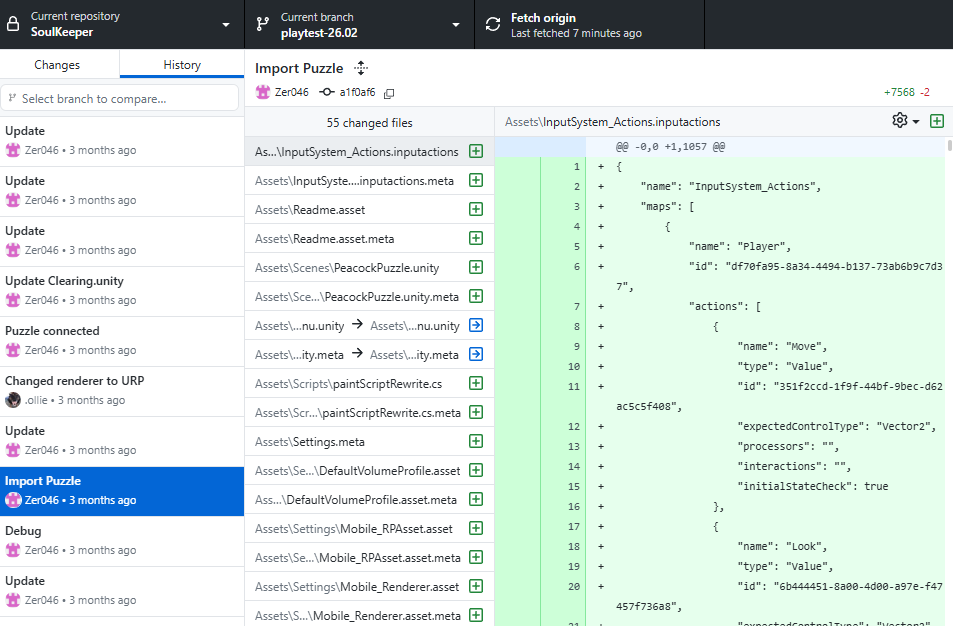
With the minigame complete, during the leadup to our first playtest, myself and Misty worked hard to make my minigame compatible with the main project build. After I had sent over the minigame build, all changes by myself and her leading up to the playtest were made on her laptop for ease of collaboration, which is why on our GitHub page the vast majority of changes appear to have been made by her: this was in fact the two of us working in unison.
Core Implementation
- Upon first applying the scene to Misty’s project, we ran into a confusing error: all of the assets in my script were turned pink, leading us to believe that the textures were missing from the project. However, after some research, I deduced that this was because our projects were built on not only different versions (ver. 2022.03.62f3 for her project and ver. 6000.0.28f1 for my own respectively), but also different pipeline renderers.
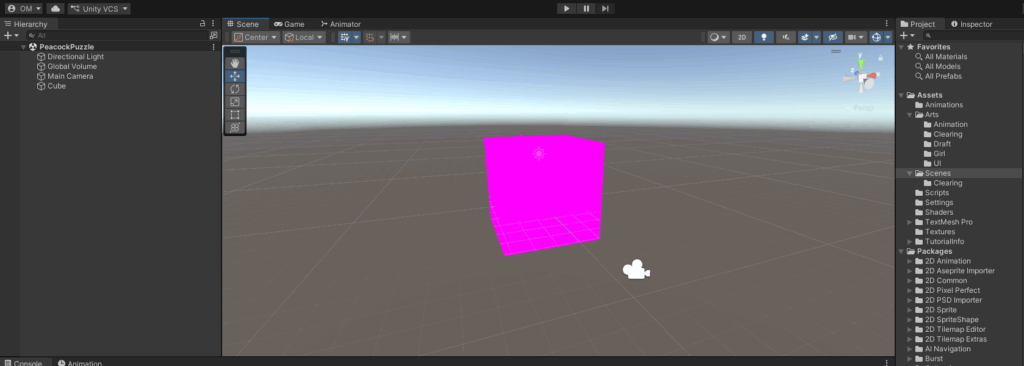
- My project was built using URP (Universal Rendering Pipeline), which is a rendering tool specifically used for creating shadermaps, whilst the main project was made using the default Unity renderer. This was a simple fix, as all we needed to do was convert all of our shared scenes to the URP by installing it from the Package Manager, which resulted in all textures finally showing.
- After showing me through all of her own written program code, we then wired the minigame scene to the main logic by adding a simple function into the peacock interaction script.
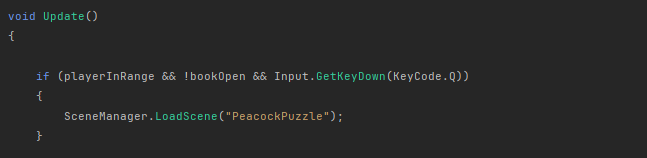
- The main issue we then had to overcome was how to return out of the peacock game into the main gameplay scene after it was complete; I did not prioritise an end state for the minigame at the time, so we had to improvise.
Altering the Minigame to Fit the Needs of the Playtest
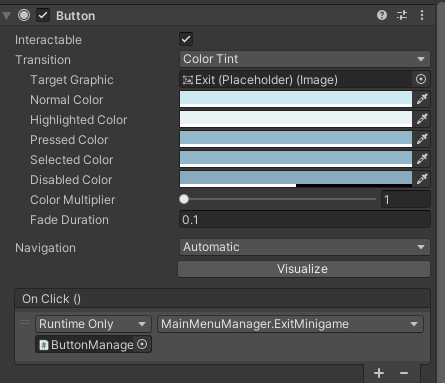
- Our quick-thinking solution to this issue was to create an exit button in the corner of the screen so that the player could opt out of the game once it had ben completed. This was something Misty was familiar with at the time as she had been working with interactive buttons to change scenes, so she very kindly walked me through the process.
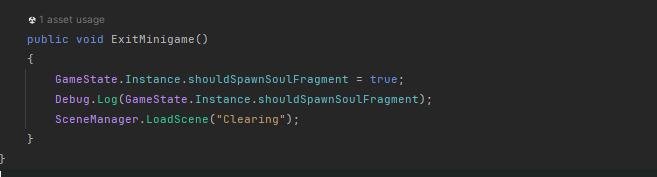
- After some trial-and-error, we chose to create a small function in the same script that was used to interface with the main menu buttons: using the SceneManager class we referred the button to bring the player back to the clearing scene after completion, alongside spawning in the soul fragment entity, an aspect of development detailed in her own personal blog.
- This function was then connected directly to the button using a ButtonManager asset, which successfully leads the player back to the previous scene.
Below is a video of this working in action:
I also added a placeholder UI element giving the players instructiosn on what to do during the minigame section, as we quickly realised it was very unclear to players what the aim of that section was.
Leave a Reply