Following the feedback from our first playtest, I made a variety of changes to the peacock minigame to improve usability and overall quality of presentation. I also now had access to some finalised art assets from my teammates Lettie and Xuan, which I put to good use.
Transferring the Minigame to the Clearing Scene
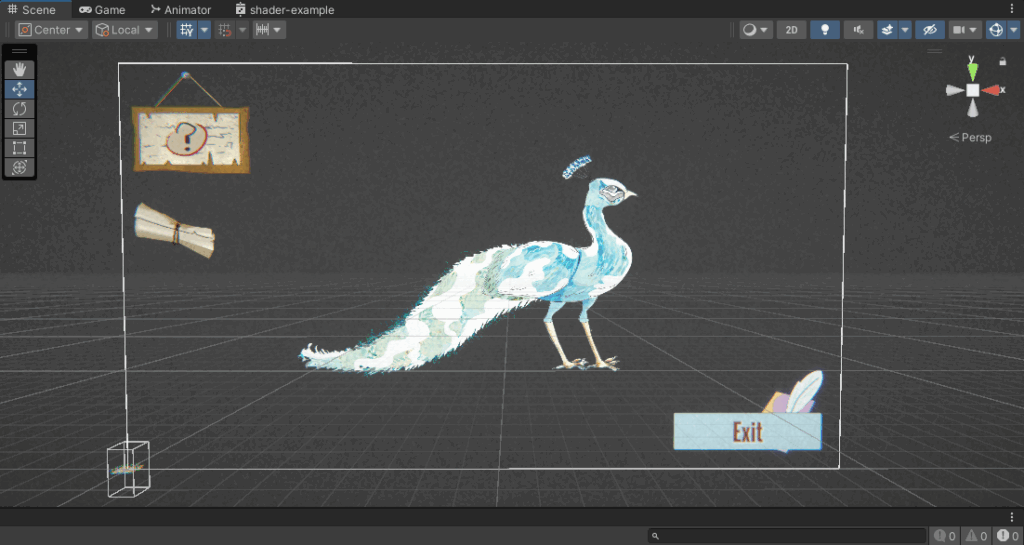
- One problem we faced during the playtest that several players brought up was that the peacock minigame took players very much out of the experience. Because it was in its own seperate scene instead of a UI overlay, players found it quite intrusive and confusing; so it was my first course of action to bring it into the main game scene as an overlay.
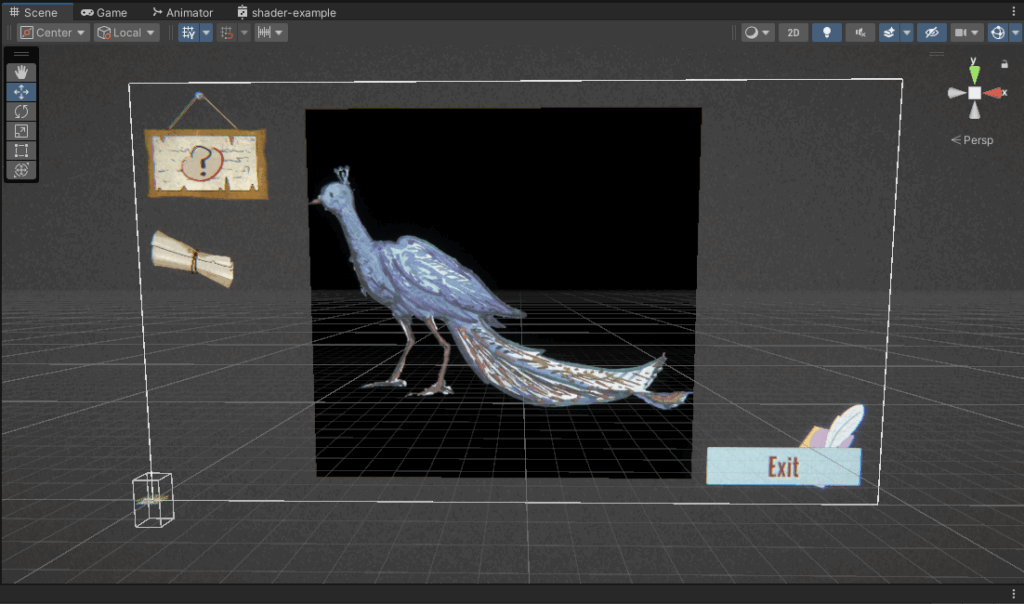
- This also required re-thinking a lot of the scripts relative to triggering the minigame via scene changes: fortunately, this ended up being quite inconsequential, as all that needed to be done was change the functions to from SceneManager functions to SetActive/!SetActive statements to get the assets I needed in the UI layer to appear/disappear.
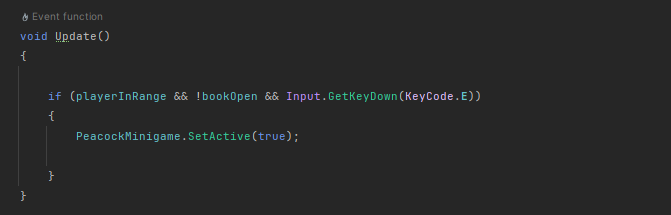
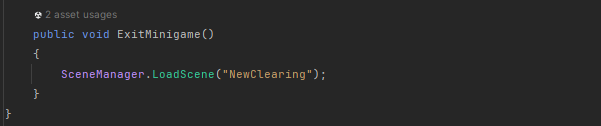
- Misty also wanted to reconfigure how the Soul Fragment spawn worked, loading a clone of the Opening scene after the mingame had been completed. This also worked to my benefit because it meant we could easily make the peacock have its coloured appearance upon finishing the minigame too, by simply swapping out the sprite assets in the new scene. Because of this, I changed the ExitMinigame button to now trigger the scene manager function, opening the scene ‘NewClearing’ instead.
Replacing Art Assets
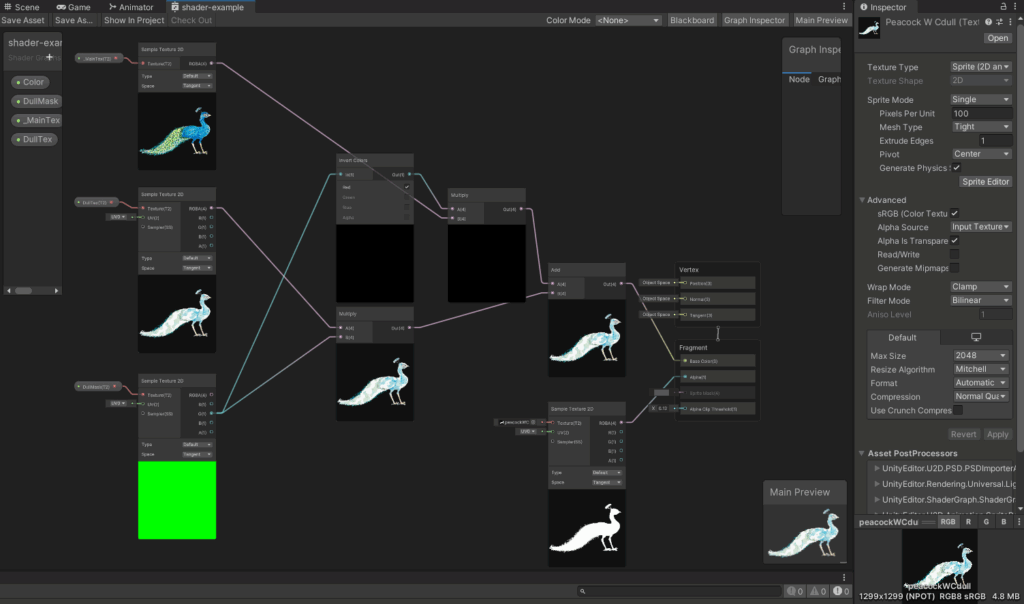
- Once I recieved the finalised peacock assets from Lettie, I made sure to implement them in the game quickly. This was actually very simple to do, as all it required was replacing the textures in the shadergraph (see Development Log 02) with the new assets.
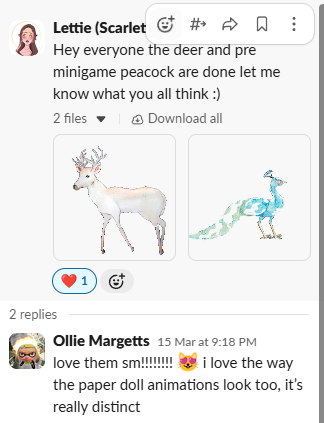
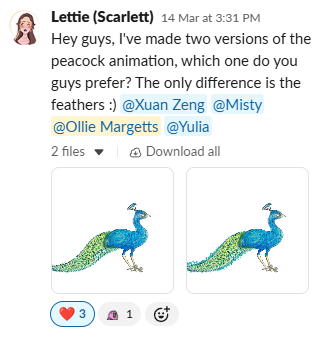

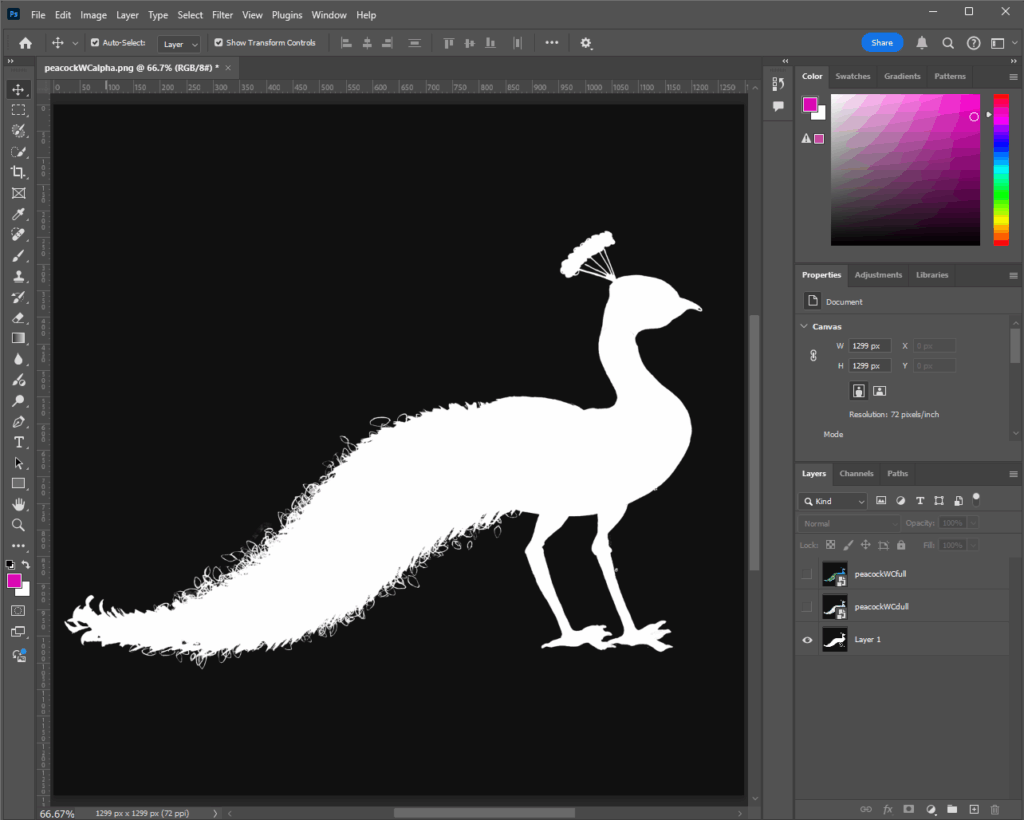
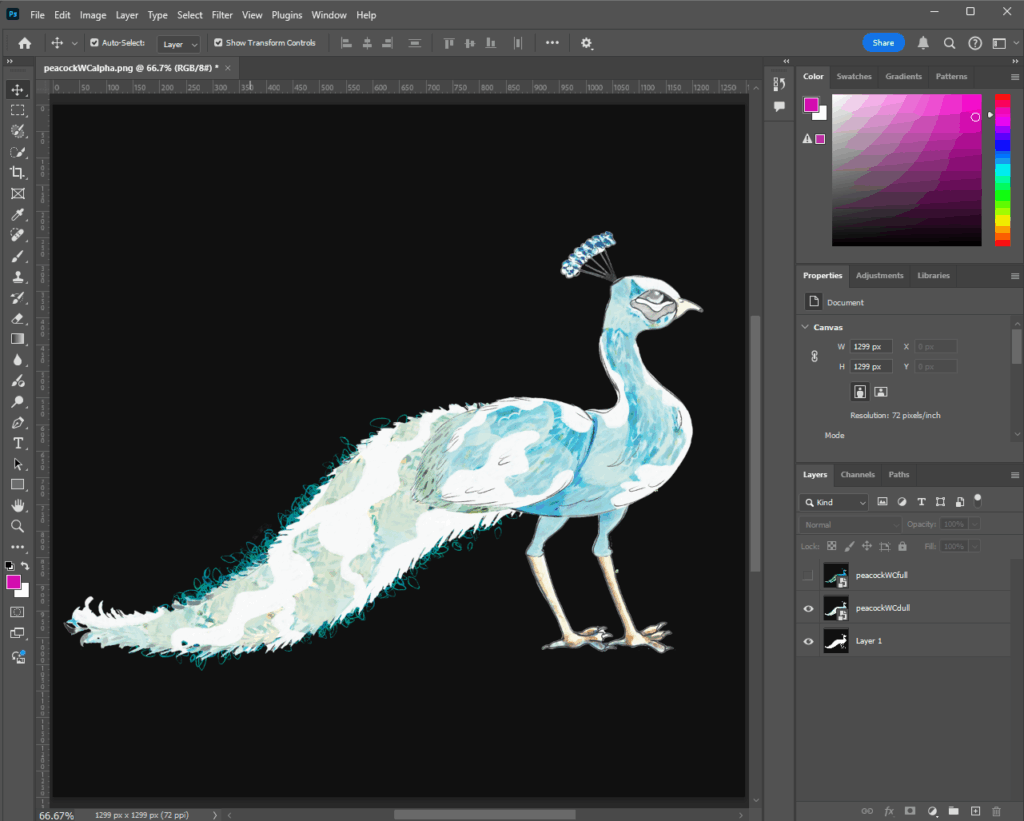
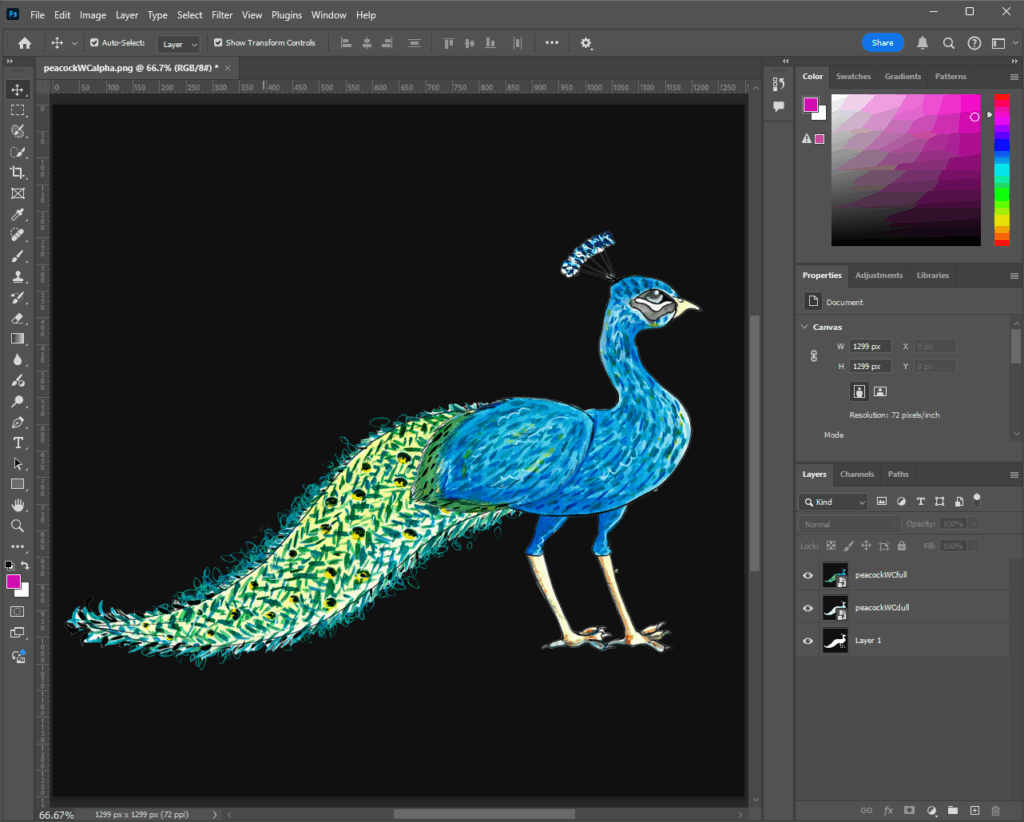
- Using Photoshop, I took select frames from Lettie’s animations and used them for the minigame texture. I also used the frames as a reference point to create an alpha texture for the shaders, which I could implement to remove the dark background from the textures, enhancing the game’s immersion.
Presentation Enhancements
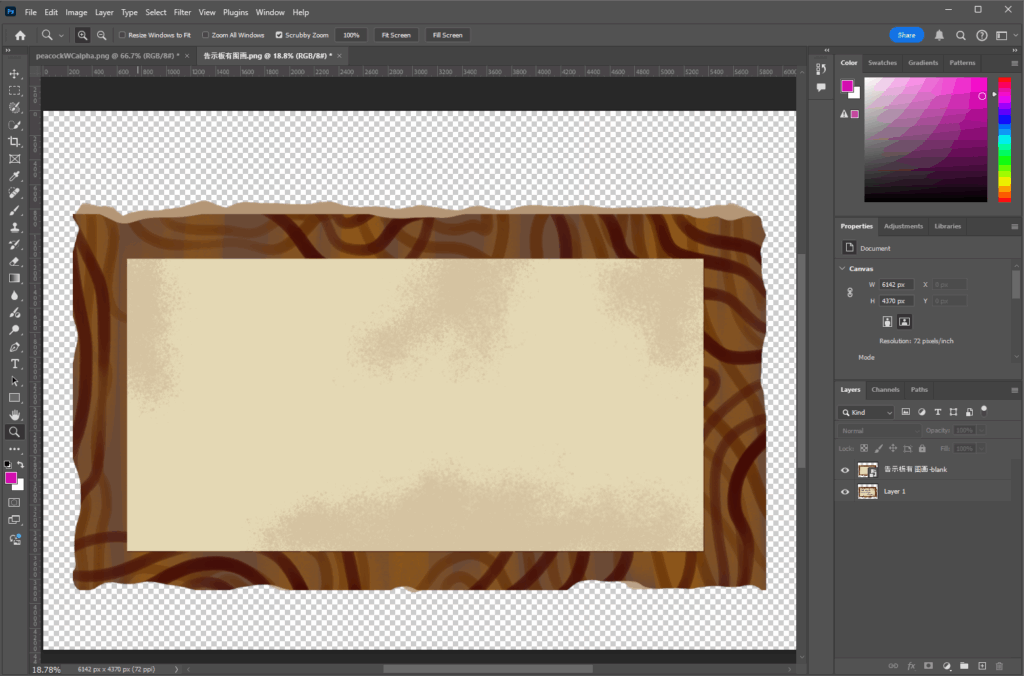
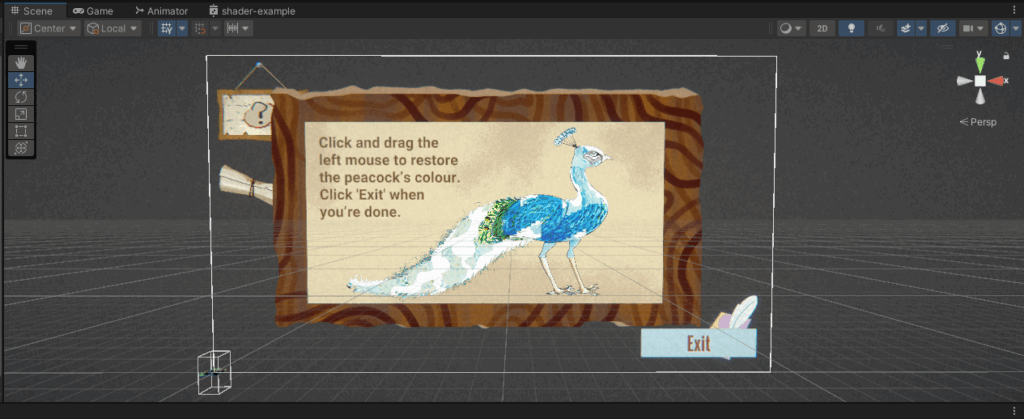
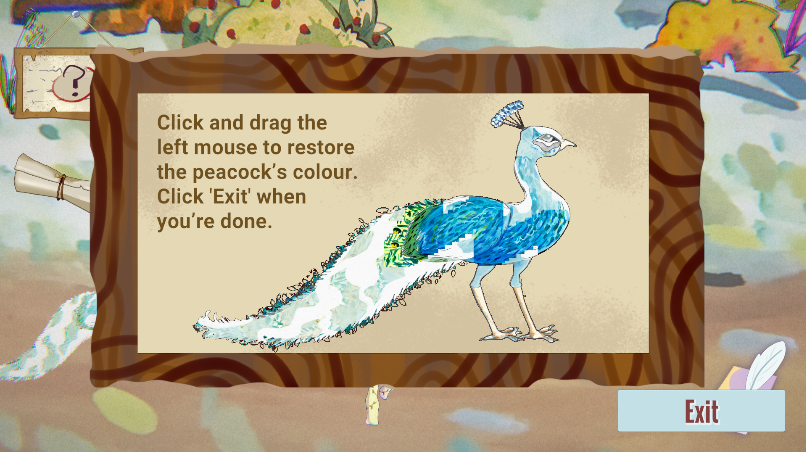
- Finally, I chose to add more elements to improve the presentation of the minigame. The most necessary addition was to add a background to the minigame, else it would be difficult to read against the bright and vibrant backdrop of the game world. I opted to make use of Xuan’s UI elements she had created prior: particularly a naturalistic wooden board design that I enjoy the look of.
- Using Photoshop again, I hid the text used for the tutorial on Xuan’s board design by painting on top my own square overlay.
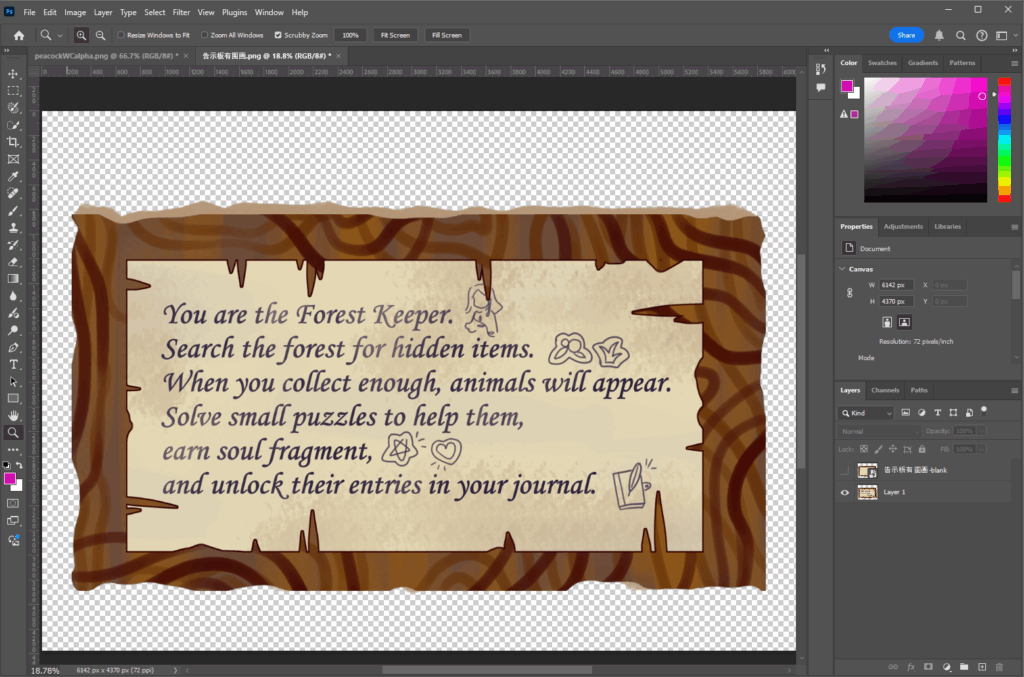
- I then placed the board behind the peacock image as a UI backdrop. Additionally, I added some tutorial text to explain to the user how to operate the game.
Leave a Reply