
The use of effects in Unity was recommended by my lecturer to add more visual appeal to the game. Me and the techncial designer decided to independently research into them and see where we ended up. For my research I went to youtube and watched videos on the subject.
https://www.youtube.com/watch?v=m-6QjaDfigs&list=LL&index=3 <- visual effects video
https://youtu.be/Q-UyHJcFY1g <- particle video
Tree Animation
In the first video he used animation on the trees to give them the impression that there is a breeze. I liked this and think this could be a good addition to the game.
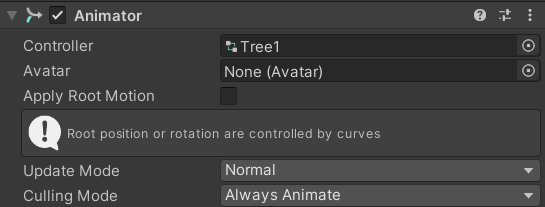
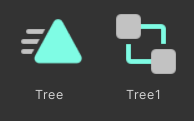
To do this I made a new animation and attached it to the tree in the inspector.

For the actual animation I hit record and and used the rotation of the trees to move them right, make a keyframe then move them left and make a keyframe. The end of the animation needed to be the trees in their natural straight position. To make the effect subtle I dragged the keyframes to five seconds so that the movement is perceptible but not unrealistic.
Visual Effects
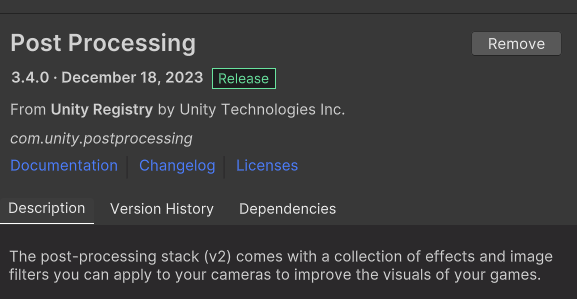
To be able to add effects to the camera I installed the post processing package to the project.
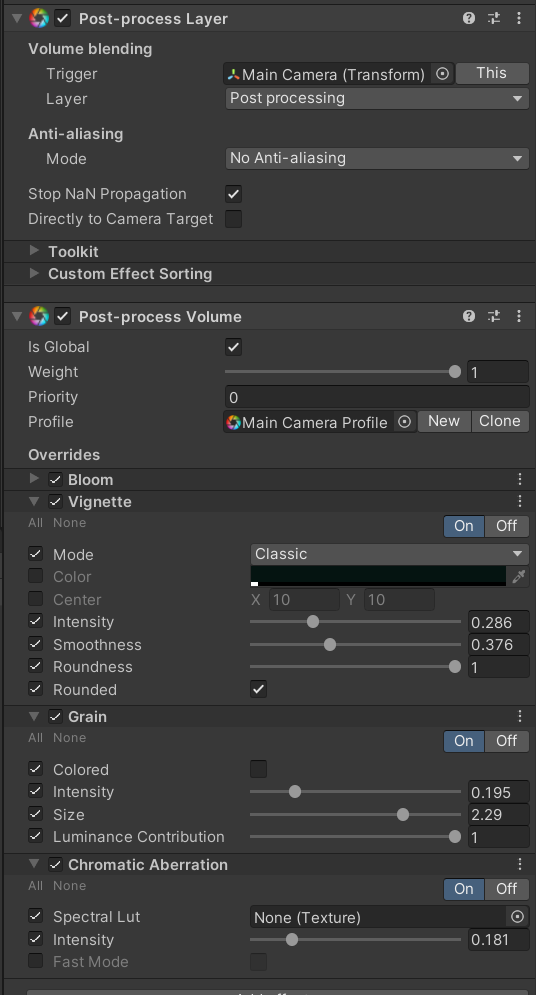
I then went to the main camera in the hierarchy and added a post processing layer, this then allowed me to add post process volume. From this component I could access a whole host of effects.
To the game I added bloom to make the whites glow, a vignette around the corners, grain to add more movement to the scene and some slight chromatic aberration.
In the final game I think all of these would be too much but it was helpful to see what could be done.
Particle Systems
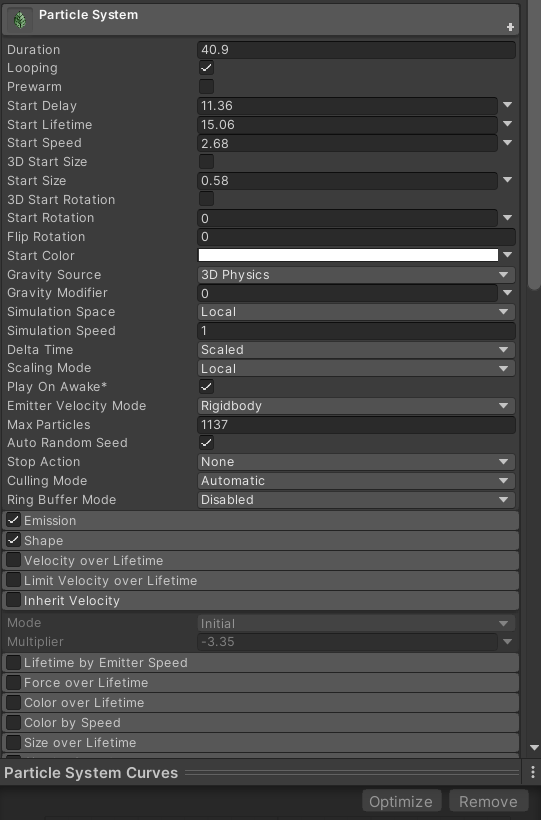
The last effects I wanted in the game were falling leaves and some glowing lights. After exploring Unity’s options I found particle effects. These are game objects that get added to the scenes hierarchy and use real time simulation to create particles. There are many ways to edit these such as lifetime speed and size all accessed through the inspector.
The default particles are airbrushed looking white dots, these are close to what I wanted but I think they could be prettier.
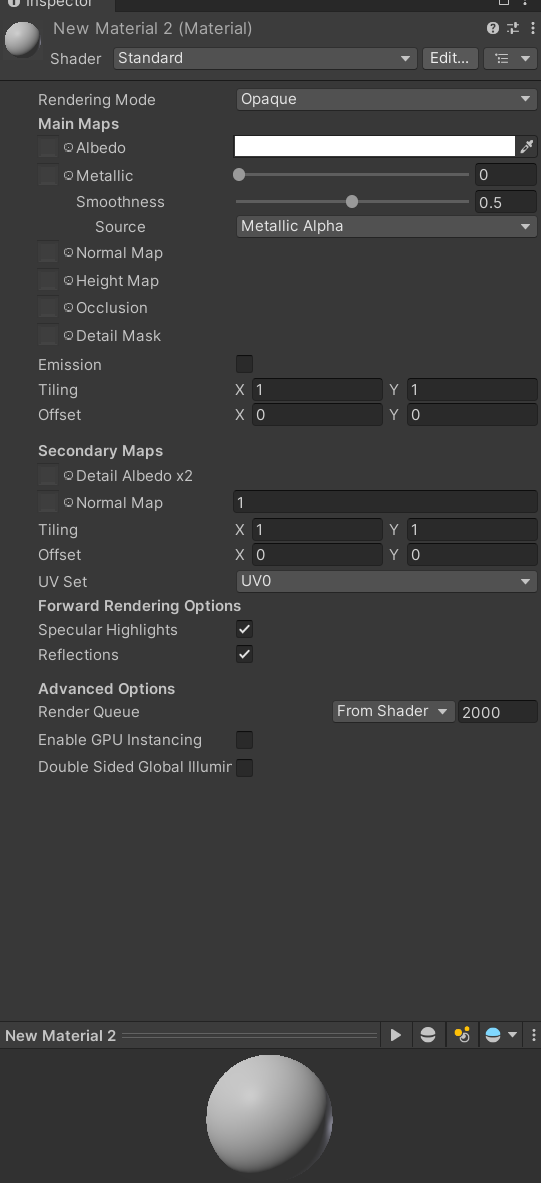
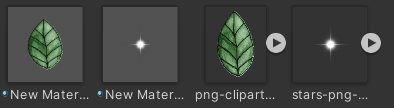
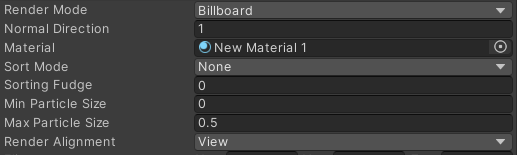
To swap out what the particles look like I followed half of the second Youtube video. I began by making a new material then changing the shader to particles -> standard unlit. I then set the rendering mode to fade and dragged a PNG of the object I wanted into the Albedo window. This changed the material into a flat image I then went back to the particle menu in the inspector and in the rendering section changed the render mode to billboard and dragged in the materials I made.
I am really happy with how these came out though further tweaking to the speeds and sizes is required for the final product.
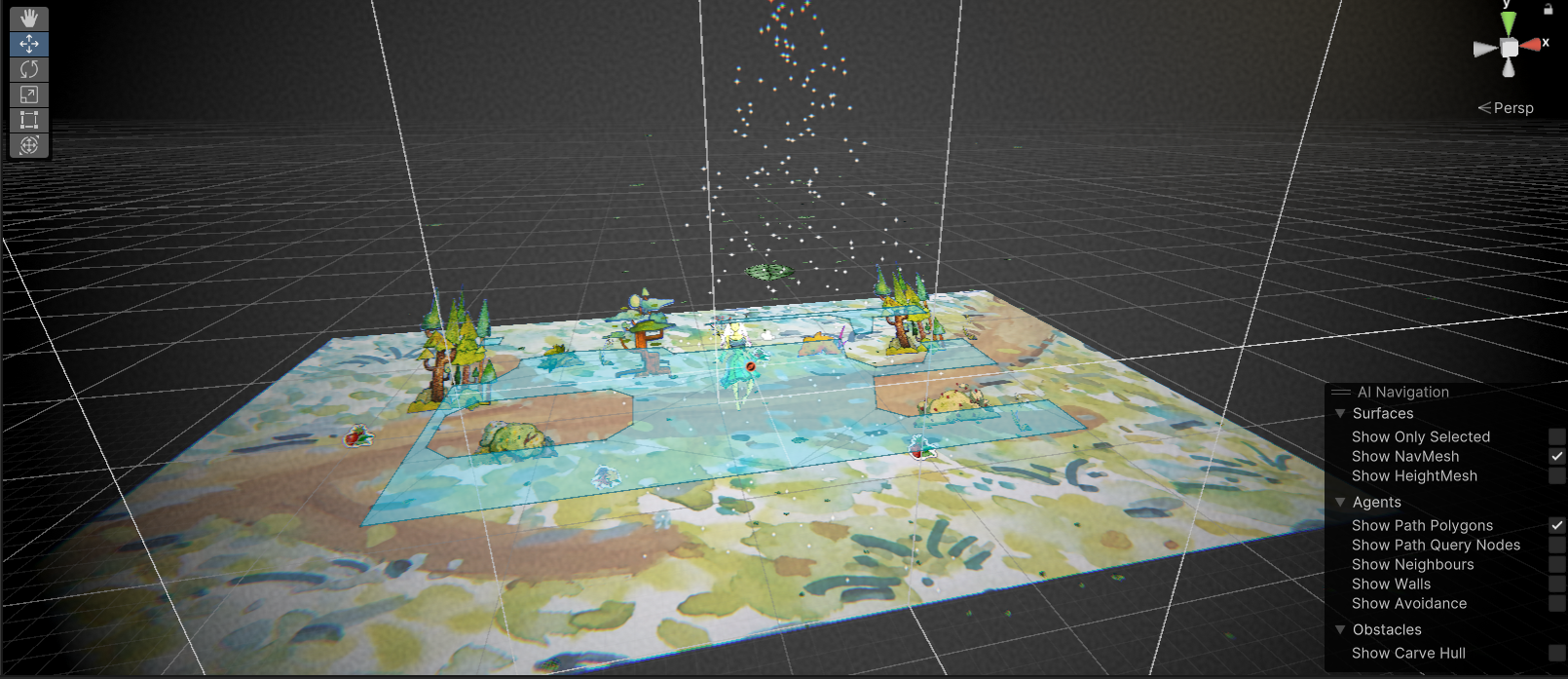
This is the view in the game editor window I positioned the sparkle particles at the top to rain down and the leaves to come in from the top at the side.
These are the final effects in the game I like how this turned out especially the particles and animation of the trees. The post processing visual effects perhaps make the game look too moody. I sent it to my team to hear their thoughts. Before the playtest me and the mechanics designer worked together to add them to the game.
Leave a Reply