26/01/2026 – 15/02/2026
Week One – Week Three
This page shows my process and reflection of sprint 1 (week1-3).
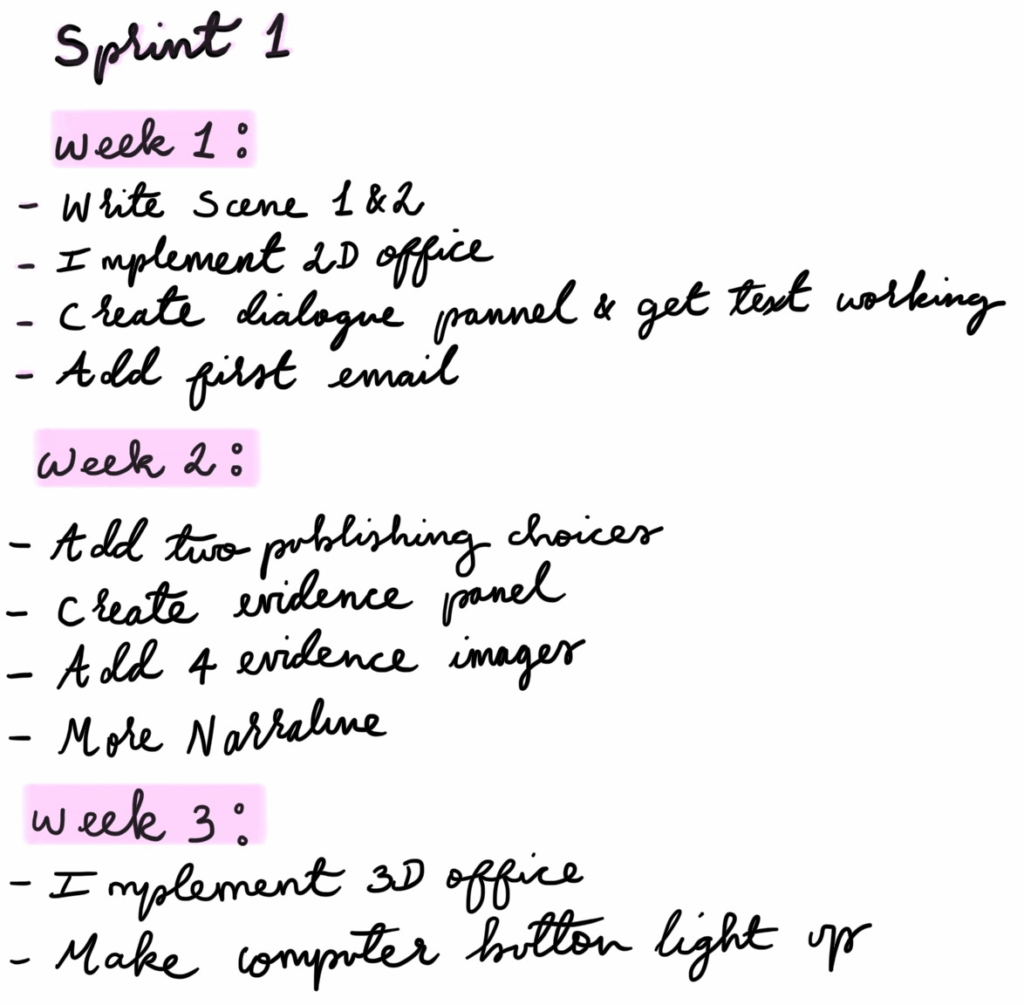
To help manage my time I have created a list of weekly tasks to follow.
✦•┈๑⋅⋯ Week One ⋯⋅๑┈•✦
Narrative Writing ✎ᝰ.
My first task this week was to make a start on the narrative writing in Google Docs. I set this up and added Izzy as an Editor so she can go through it at any point and make any corrections.
By the end of this week I was able to write the game introduction, as well as case one which meant I was quite on track. I was even able to write down different choices and their effects on the game.
✦•······················•✦•······················•✦✦•······················•✦•······················•✦✦•······················•✦•······················•✦✦•······················•✦•······················•✦✦•······················•✦•······················•✦
Learning Unity Basics💻
Luckily I have had some previous Unity experience so I’m confident that this project scope is something I can handle, however I need to refresh myself with the basics.
This week was mostly learning about these fundamentals:
- Hierarchy, Inspector, and Project windows
- Canvas with proper UI scaling
- Importing images
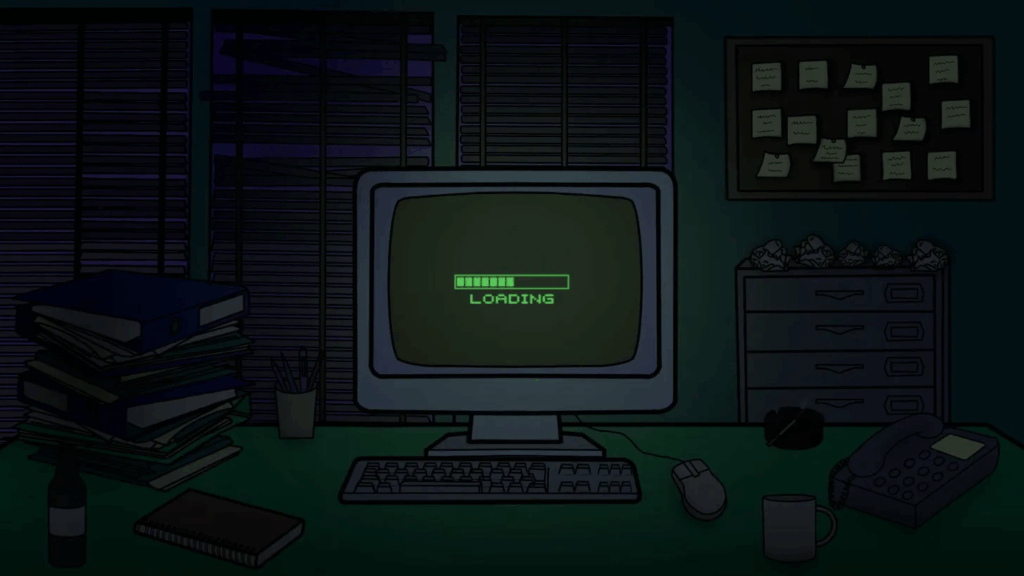
Using a 2D placeholder drawing I made over Christmas break, I began by creating a background.
Background Setup Process:
- Added the PNG to my Sprites folder
- Changed texture type from Default to Sprite (2D and UI)
Clicked Apply - Right-clicked Canvas in Hierarchy – UI – Image
- Named it “OfficeBackground”
- Dragged the sprite into the Source Image field
- Set Rect Transform to stretch full screen (anchor presets – stretch all)
Canvas Set up the Canvas with proper scaling:
- Canvas Scaler – UI Scale Mode: Scale With Screen Size
- Reference Resolution: 1920 x 1080
- This ensures the UI looks consistent across different screen sizes
Mapped out the technical systems needed:
- Dialogue display system with typewriter effect
- Email/computer interaction system
- Evidence investigation mechanics
- Stats tracking and display
- Choice consequence system
Moving the story into code
Once I had the narrative written in Google Docs, I needed to figure out how to actually implement it in Unity. I couldn’t just paste paragraphs of text into the Inspector – that would be messy and hard to manage.
Planning the Structure– I mapped out what systems I’d need:
- A way to display dialogue with speaker names
- A system to show emails
- Evidence viewer for case files
- Choice buttons that would trigger different outcomes
- Stats that would change based on decisions
Writing the Cutscene– For the opening scene, I knew I wanted:
- Player arrives and makes a comment
- Phone notification appears
- Player notices it
- Voicemail plays automatically
- Player responds
- Computer becomes clickable
Structuring Dialogue in Code:
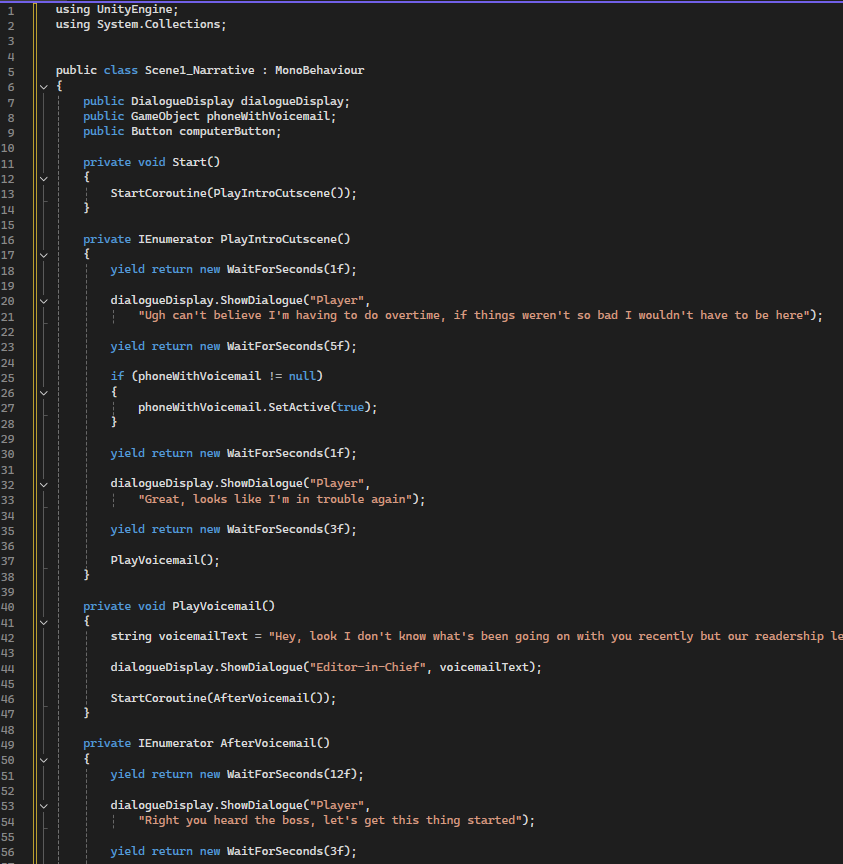
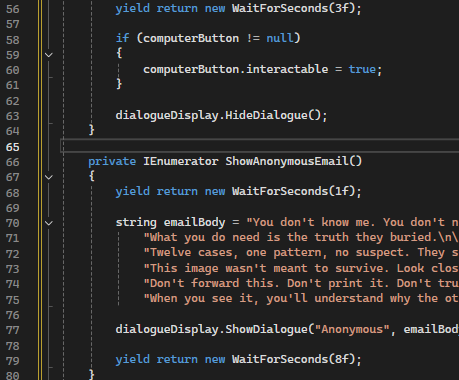
For each scene beat, I set up a coroutine:

The WaitForSeconds values took trial and error. Too short and dialogue overlapped, too long and it felt slow.
Case 1 script
✦•┈๑⋅⋯ Week Two ⋯⋅๑┈•✦
Dialogue System
I knew I needed a way to display all the narrative text, voicemails, emails, player thoughts, evidence analysis, etc. I thought the best way to go about this is by making everything go through one dialogue system.
Building the Script:
I started by creating DialogueDisplay.cs and setting up the basic structure. I watched Brackeys’ dialogue tutorial to refresh my memory on how coroutines work for the typewriter effect.
First, I just got basic text displaying:
Created public variables for the UI elements (dialoguePanel, dialogueText, speakerNameText)
Made a simple ShowDialogue() function that just sets the text Tested that to make sure it worked, then moved on to the typewriter effect.
Adding the Typewriter Effect:
This was the trickier part. I needed to use a coroutine (IEnumerator) to display text letter by letter with delays.
The logic was:
- Clear the text field
- Loop through each character in the string
- Add one character at a time
- Wait a tiny bit (yield return new WaitForSeconds(typingSpeed))
- Repeat until done
This took a few tries to get the timing right. Too fast and it looked weird, too slow and it was annoying. I decided to Settle on 0.05 seconds per letter. I chose to use coroutines for the typewriter effect rather than using a timer-based approach because coroutines allow you to pause, delay, and resume code execution over time without blocking the rest of the game. This made them the most logical fit for displaying text letter by letter. A timer would have been messier to manage and harder to control precisely. Once I understood this it became my go-to approach for anything time-dependent in the project.
Connecting to Unity:
Once the script worked, I had to hook it up in Unity:
- Attached the DialogueDisplay script to the dialogue panel
- Dragged all the UI references into the Inspector fields
- Hit play and tested with some placeholder dialogue
The Input System Problem:
I wanted to add a skip feature where you could click to show all the text instantly. Wrote the code in Update() using Input.GetMouseButtonDown(0), but I got this error:
InvalidOperationException: You are trying to read Input using the UnityEngine.Input class, but you have switched active Input handling to Input System package
Turns out Unity has a new Input System and my code was using the old one. Rather than spend time learning the new system right then, I just commented out the skip feature. I can add it back later once I figure out the new Input System properly.
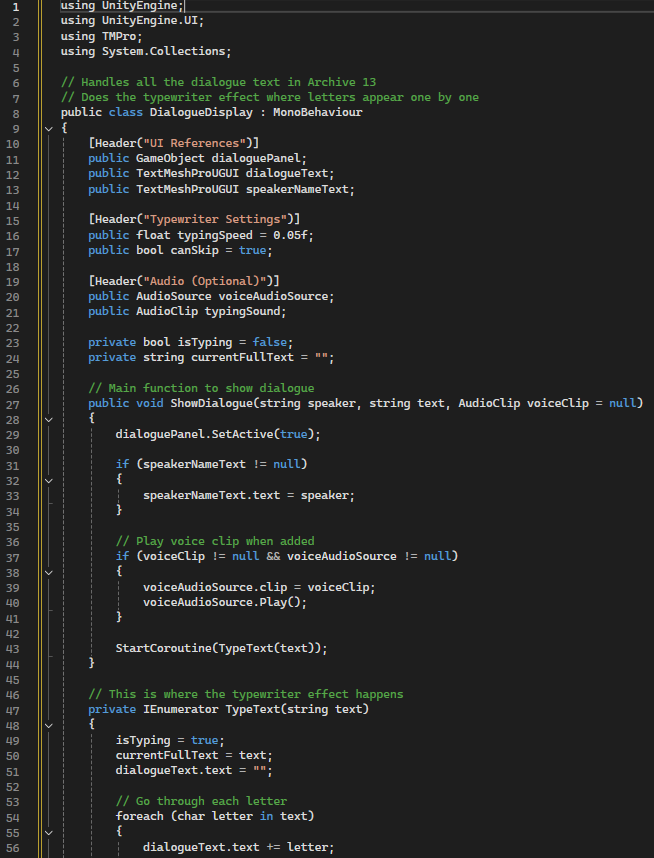
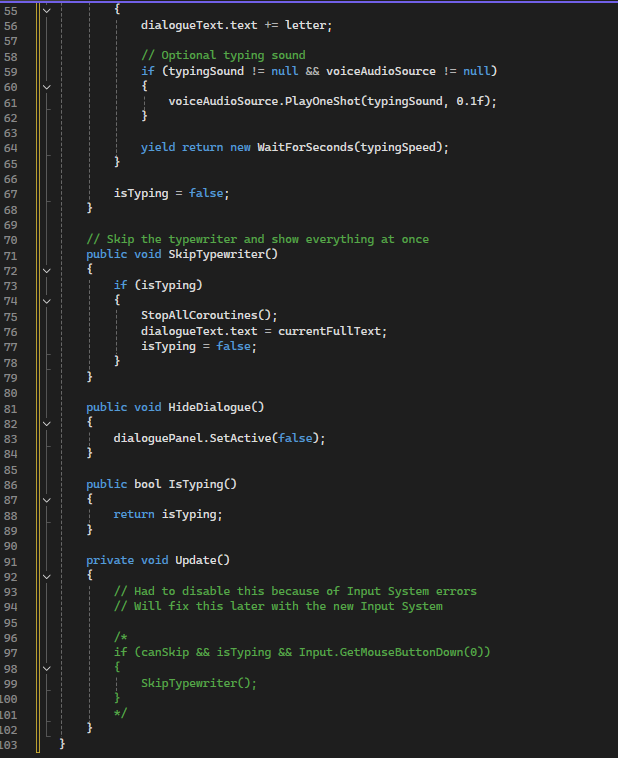
Above is the dilalogue system script.
✦•┈๑⋅⋯ Week Three ⋯⋅๑┈•✦
Creating Evidence Display and View System
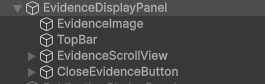
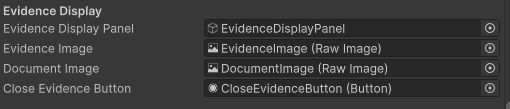
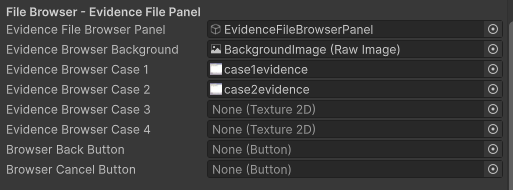
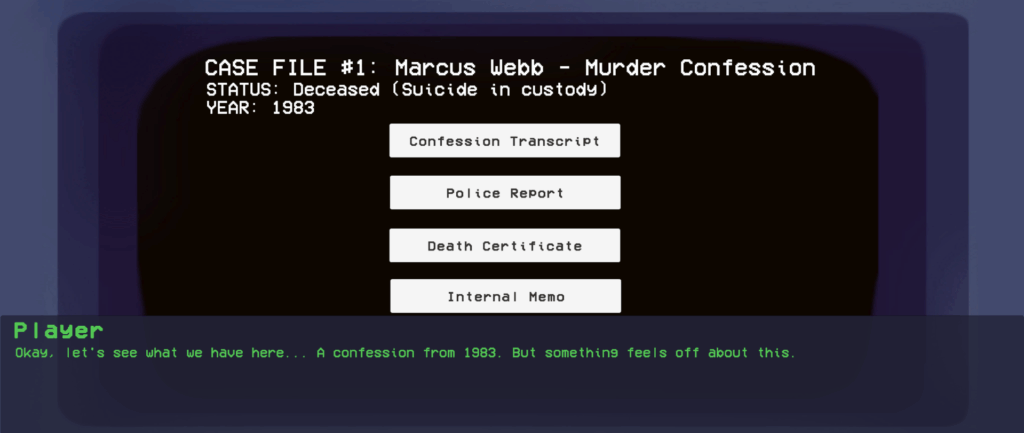
When the player downloads the email attachment, a case browser opens showing the files available to investigate. Cases unlock as the story progresses, and the browser updates visually to reflect the growing archive.
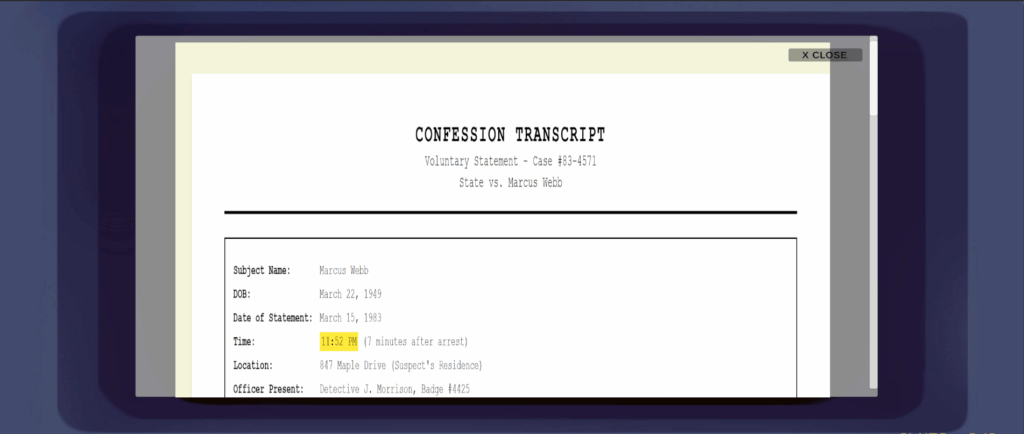
Clicking a file triggers a short transition. The browser panel closes, the evidence display opens, and the relevant document loads in a confession transcript, a police report, a death certificate, an internal memo.
I tracked which documents had been reviewed using a boolean array, one flag per evidence slot. Every time a document was closed I checked whether all four flags were set. If they were, the sequence moved forward into the next story beat instead of returning to the file browser. If not, the file browser reopened so the player could continue.
I figured out the implementation through research and experimentation, testing different approaches until the system worked the way I wanted it to.
Headline choices
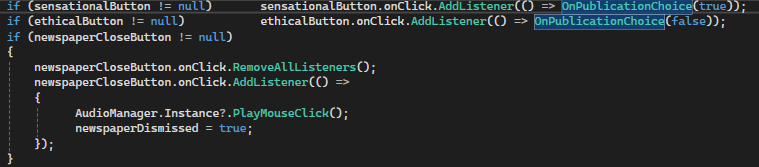
Both buttons call OnPublicationChoice, just with a different value. That boolean then drives everything that follows. The stat changes and the newspaper texture that loads in.
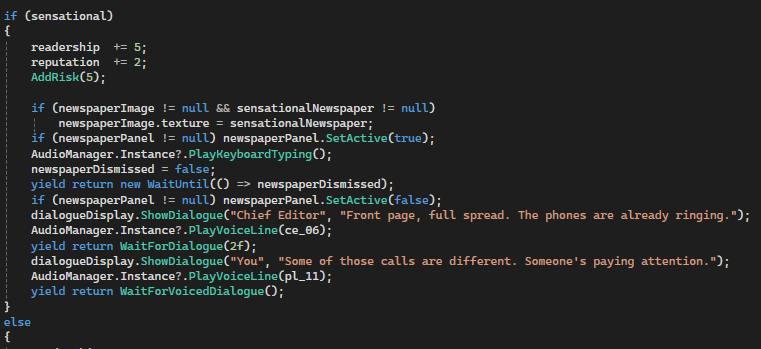
The sensational choice gives a bigger readership boost but raises risk more. The ethical choice builds reputation more slowly and keeps risk lower. Those stats carry forward into the next scene and affect what happens there.
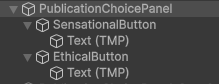
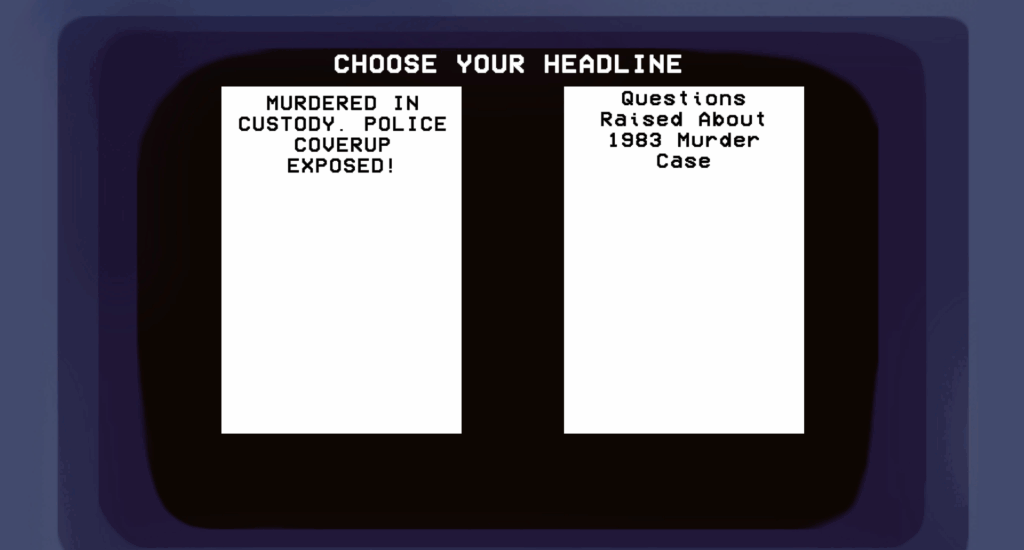
At the end of each case, the player is given a choice between two approaches to publishing their story — sensational or ethical. The sensational option prioritises readership and immediate impact, while the ethical option builds reputation and keeps risk lower.
I built this as a simple panel with two buttons, SensationalButton and EthicalButton, each with a TMP label. Clicking either button closes the panel and triggers the relevant consequences — adjusting the stats, displaying the correct newspaper texture, and playing the appropriate voiced reactions from both the player character and the editor.
Those stats carry forward into the next scene, and in Scene 2 the editor’s reaction is shaped by both the current choice and the previous one — so there are four possible combinations of dialogue depending on how the player has been playing. That cross-scene tracking is handled by passing the boolean choice from Scene 1 into Scene 2 when the transition happens.
Reflection
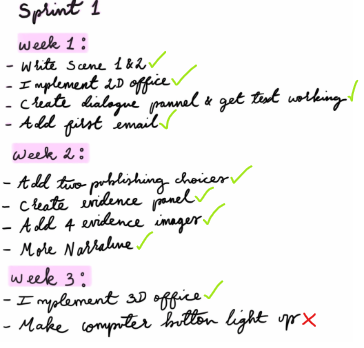
During this sprint I was quite productive. I managed to achieve everything on my list apart from the computer button light. This is quite minor and shouldn’t be too time consuming so I have full confidence that I can complete it in the beginning of sprint two. Considering I haven’t touched Unity in a while I have gained the skills I had back quite quickly and learned even more!