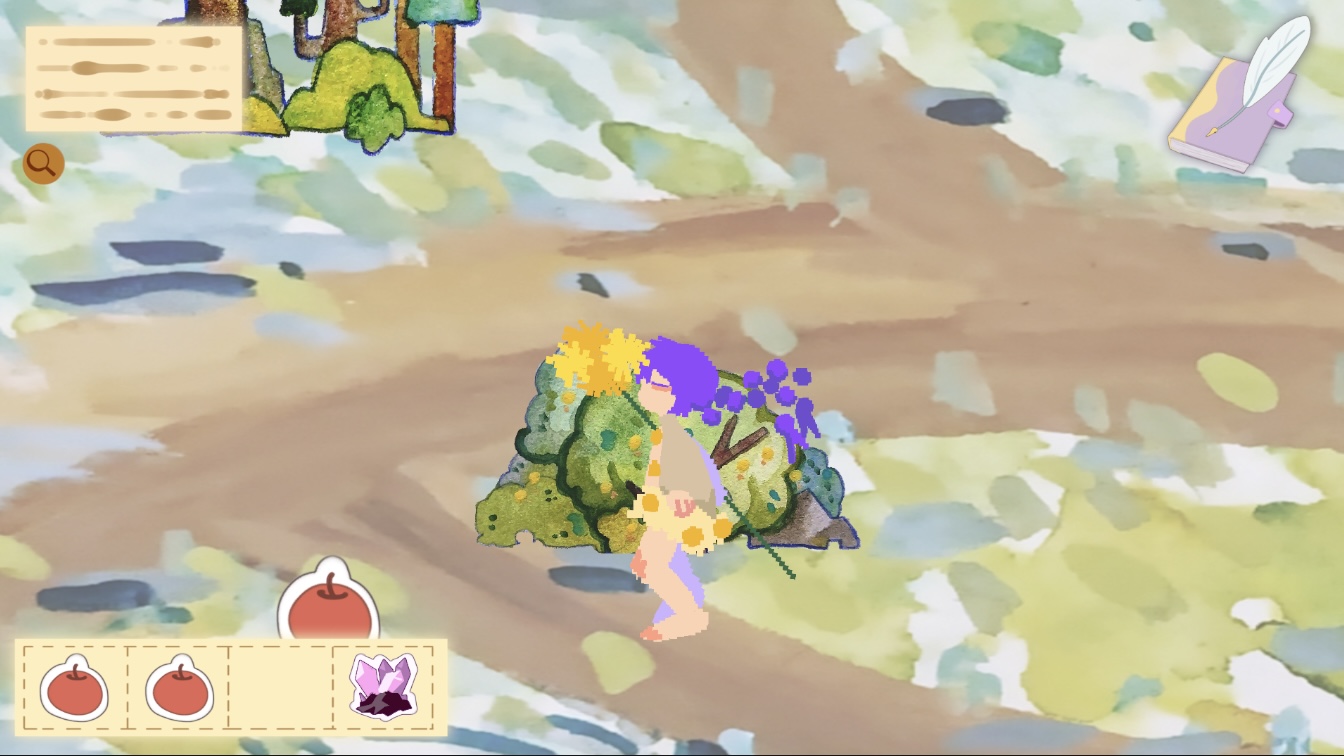
In this development phase, I implemented the apple collection mechanic within my Item System. The main goal was to allow the player to collect apples and crystals, update the UI in real time, and trigger a special event (spawning a peacock) once certain conditions are met.
Item Collection
To centralise data management, I first created an empty GameObject in the Unity Hierarchy and named it GameManager. This object functions as the core data storage system for all collectable items. I then attached the ItemManager script to the GameManager via the Inspector panel. This script is responsible for tracking item counts, updating the UI, and checking whether special spawn conditions are satisfied.
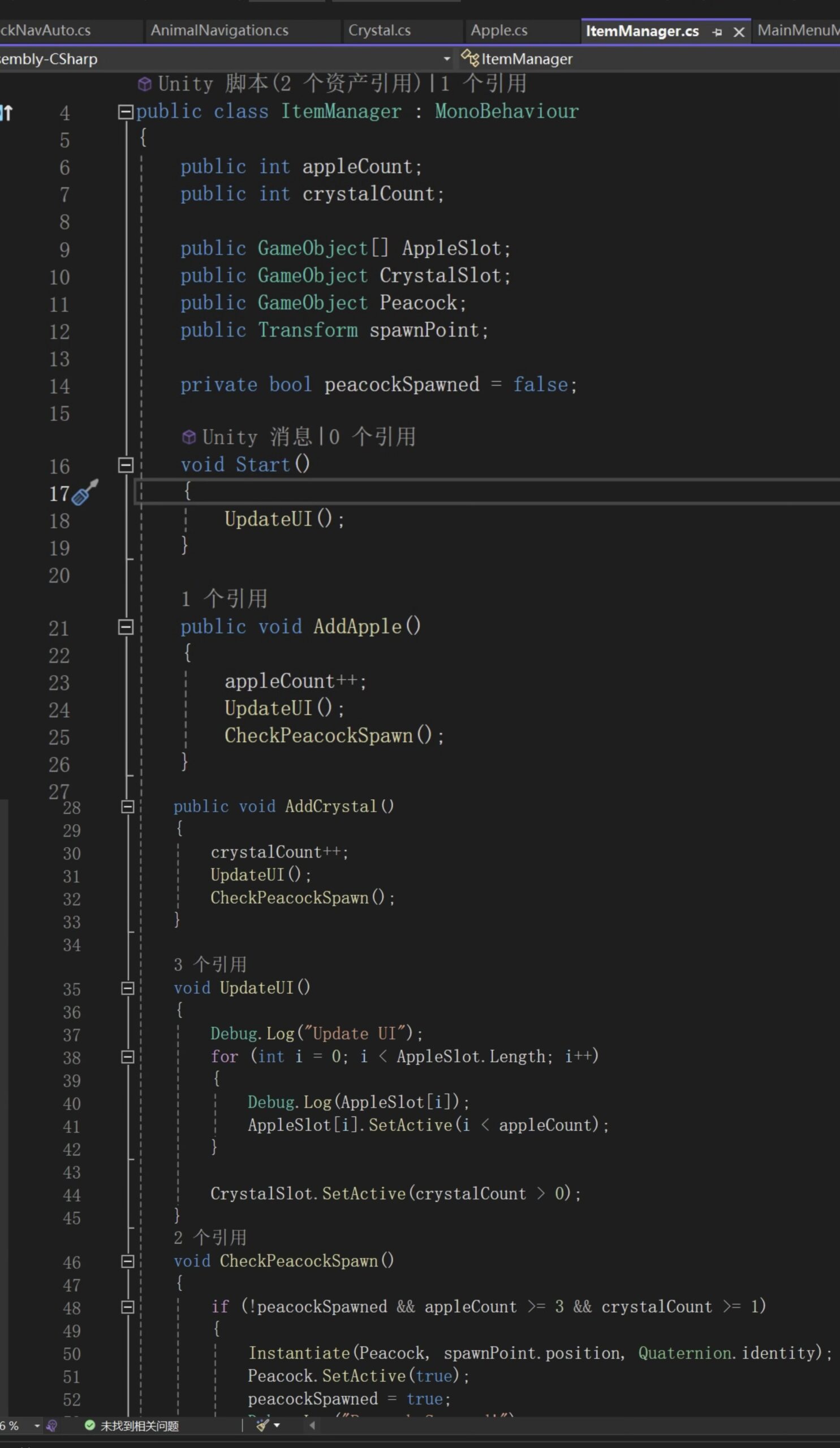
The script begins with the declaration:
public class ItemManager: MonoBehaviour
This means the ItemManager is a Unity component that can be attached to a GameObject and can use Unity lifecycle methods such as Start().
Next, I declared two public integer variables:
public int appleCount;public int crystalCount;
These variables store the current number of apples and crystals collected by the player. Making them public allows me to monitor them directly in the Inspector for debugging purposes.
Then I declared several public references:
public GameObject[] AppleSlot;public GameObject CrystalSlot;public GameObject Peacock;public Transform spawnPoint;
The AppleSlot array stores UI elements representing Apple icons. Each element in the array corresponds to one apple displayed on the screen.CrystalSlot controls the crystal UI icon.Peacock is the prefab that will be instantiated when conditions are met.spawnPoint determines the position where the peacock will appear in the scene.
Next, I declared a private boolean:
private bool peacockSpawned = false;
This variable ensures that the peacock is spawned only once. By keeping it private, I prevent external scripts from modifying it accidentally.
Start Method
Inside the Start() method:
void Start() { UpdateUI(); }
When the game begins, the system immediately updates the UI to ensure that the display matches the initial item counts (usually zero). This prevents UI inconsistencies at launch.
AddApple
The AddApple() function is called whenever the player collects an apple.
appleCount++;
This increases the apple count by one.
UpdateUI();
After updating the data, the UI refreshes so the change is visually reflected.
CheckPeacockSpawn();
Finally, the script checks whether the special spawn condition has been met.
Item UI Upadate
Script part:
The UpdateUI() method controls the visual feedback.
Debug.Log("Update UI");
This line prints a message in the Console for debugging purposes, allowing me to verify that the method is being executed.
Then a loop runs:
for (int i = 0; i < AppleSlot.Length; i++)
This loop iterates through every Apple UI slot.
Inside the loop:
AppleSlot[i].SetActive(i < appleCount);
This line activates each apple icon only if its index is less than the current apple count.
For example, if appleCount is 2, only the first two UI icons will be active. This creates a dynamic visual representation of collected apples.
After the loop:
CrystalSlot.SetActive(crystalCount > 0);
This means the crystal UI icon becomes visible only if at least one crystal has been collected.
Engine part:
I first placed three Apple UI icons and one Crystal UI icon at their intended positions on the screen. These icons represent the collectable progress visually. Before running the game, I manually set all of these UI elements to inactive in the Inspector. This ensures that no icons are visible at the start of the game, since the player has not collected any items yet.
After setting up the UI elements, I assigned them to the GameManager. In the Inspector panel of the GameManager (where the ItemManager script is attached), I dragged each apple UI object into the corresponding AppleSlot array elements, and dragged the crystal UI object into the CrystalSlot field. This allows the script to control its visibility dynamically at runtime. Once the player collects items, the script activates the correct UI elements through the UpdateUI() method.
Collect items to trigger the Animal.
Script part:
The CheckPeacockSpawn() method handles the special event logic.
if (!peacockSpawned && appleCount >= 3 && crystalCount >= 1)
This condition checks three things:
The peacock has not already been spawned.
The player has collected at least three apples.
The player has collected at least one crystal.
If all conditions are satisfied:
Instantiate(Peacock,spawnPoint.position, Quaternion.identity);
This creates a new instance of the peacock prefab at the designated spawn position.
Peacock.SetActive(true);
This ensures the spawned peacock is active in the scene.
peacockSpawned = true;
This prevents the system from spawning multiple peacocks if the condition is checked again.
Engine part:
I created an empty GameObject named PeacockSpawnPoint. This object serves as a reference position for spawning the peacock. I placed it precisely at the location in the scene where I want the peacock to appear. By using an empty GameObject as a spawn marker, I can easily adjust the spawn position directly in the Unity Editor without modifying the script. I then assigned this object’s Transform to the spawnPoint field in the GameManager, allowing the Instantiate() function to spawn the peacock at the exact designated location.

Leave a Reply