
Sound
Communicating with team members
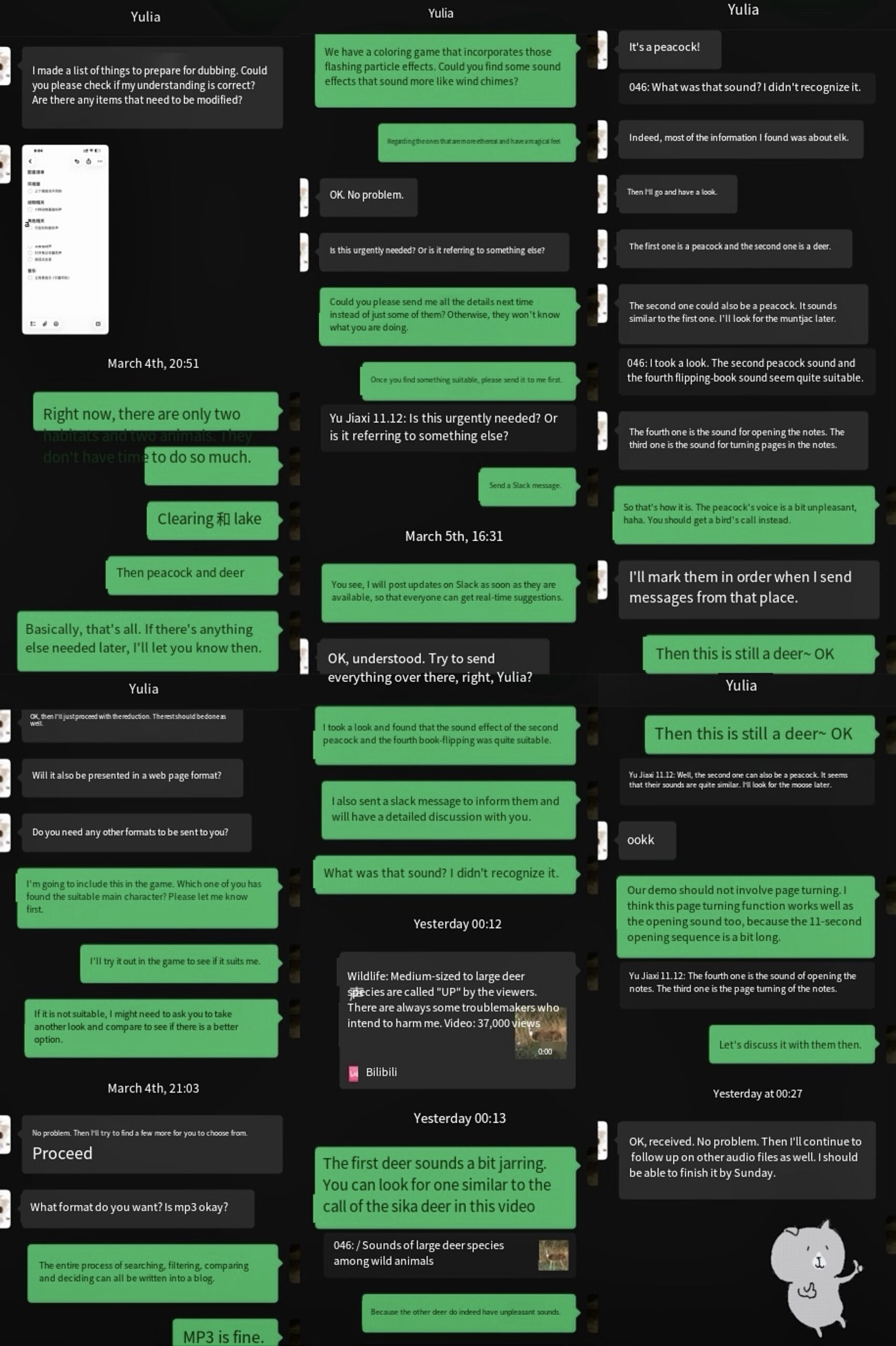
As a world designer, Yulia is also responsible for sourcing music and sound effects that help create atmosphere and immersion.
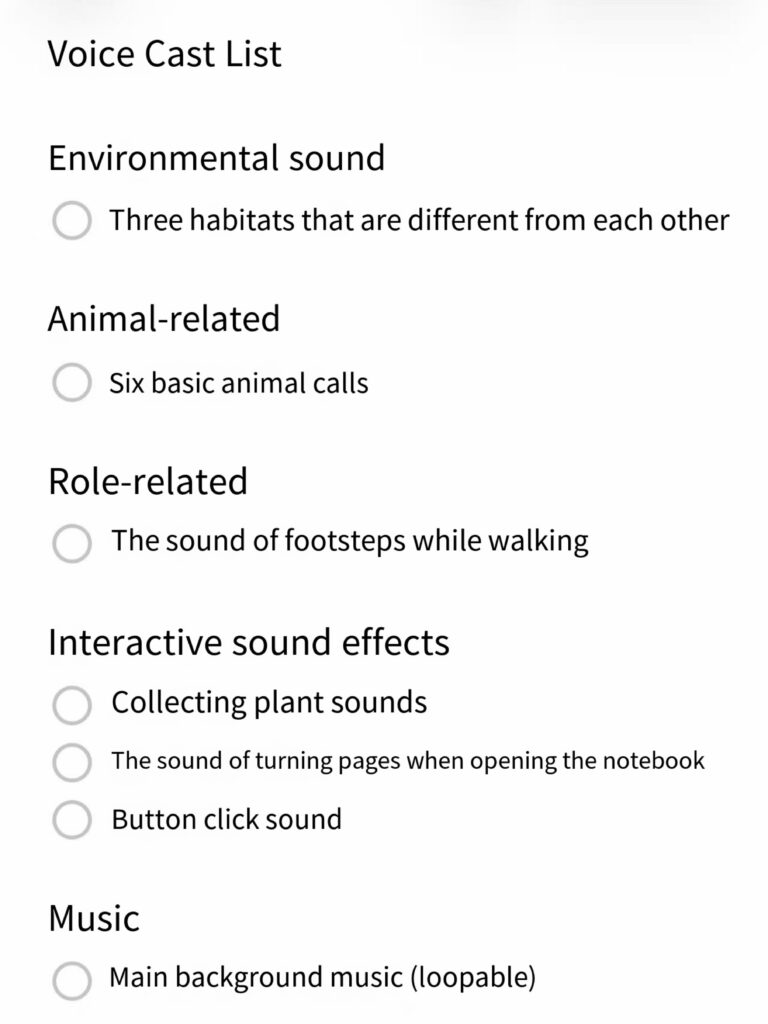
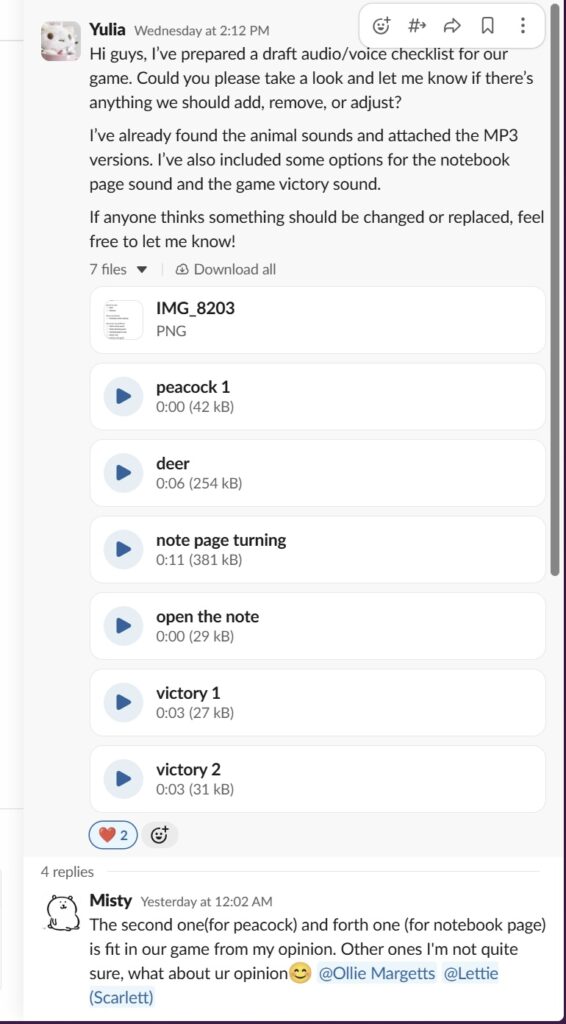
At first, she wasn’t sure exactly which sound effects our game needed to include, so she started by listing the ones she thought should be covered based on the GDD, and I went through them with her to confirm the details and rule out any unnecessary ones.
Importing sound effects
A tutorial that helps me with it:
How to Add MUSIC and SOUND EFFECTS to a Game in Unity | Unity 2D Platformer Tutorial #16
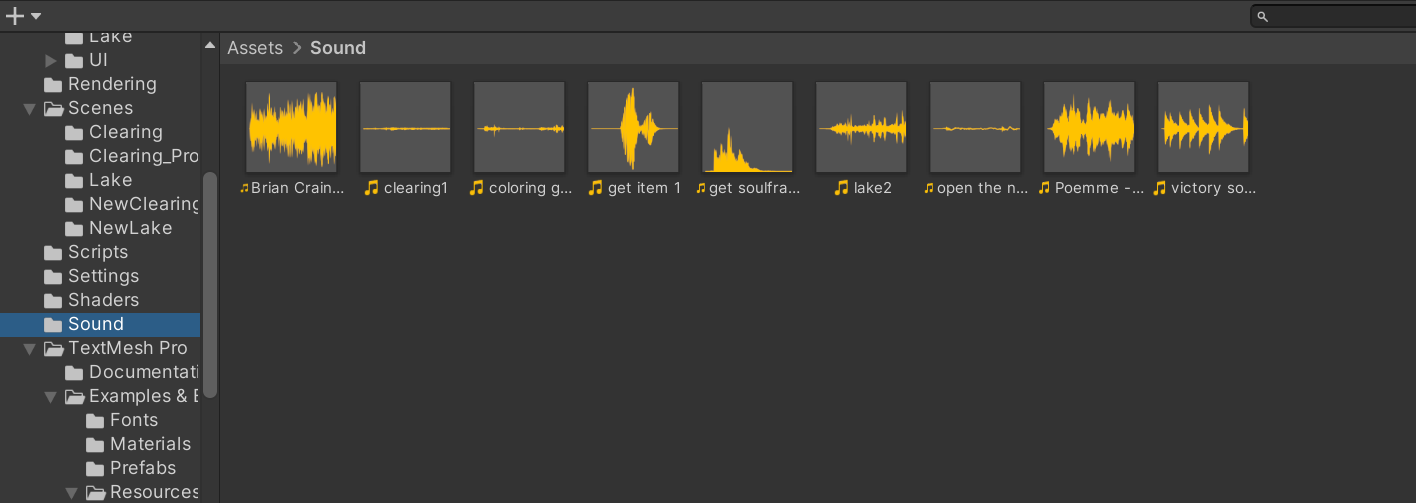
Based on the music and sound effect resources that Yulia has researched, we had a group discussion to choose the best one to fit our game’s atmosphere (peaceful, magical). I imported them into the Unity project.
Engine setup:
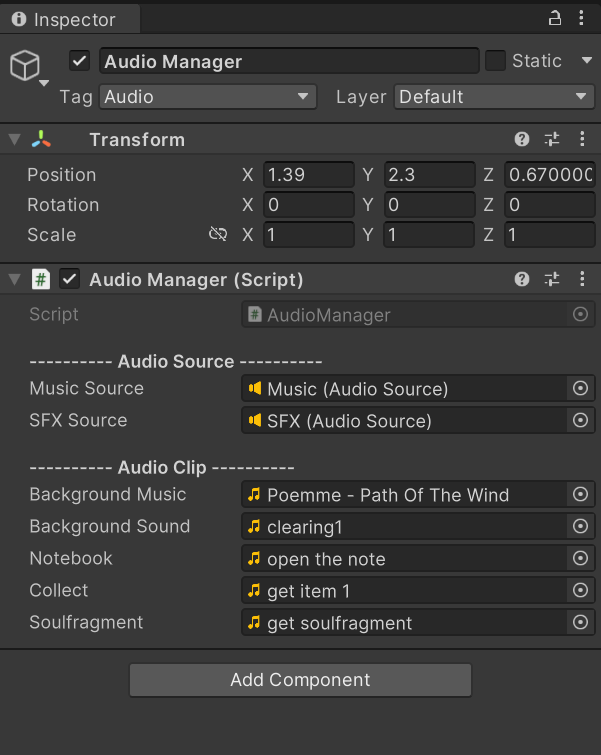
To ensure consistency and flexibility in audio implementation, each gameplay scene that contains sound elements is equipped with an Audio Manager. The Audio Manager is responsible for organising, triggering, and replacing audio assets, allowing sound design to be iterated efficiently without modifying core gameplay logic.
Script:
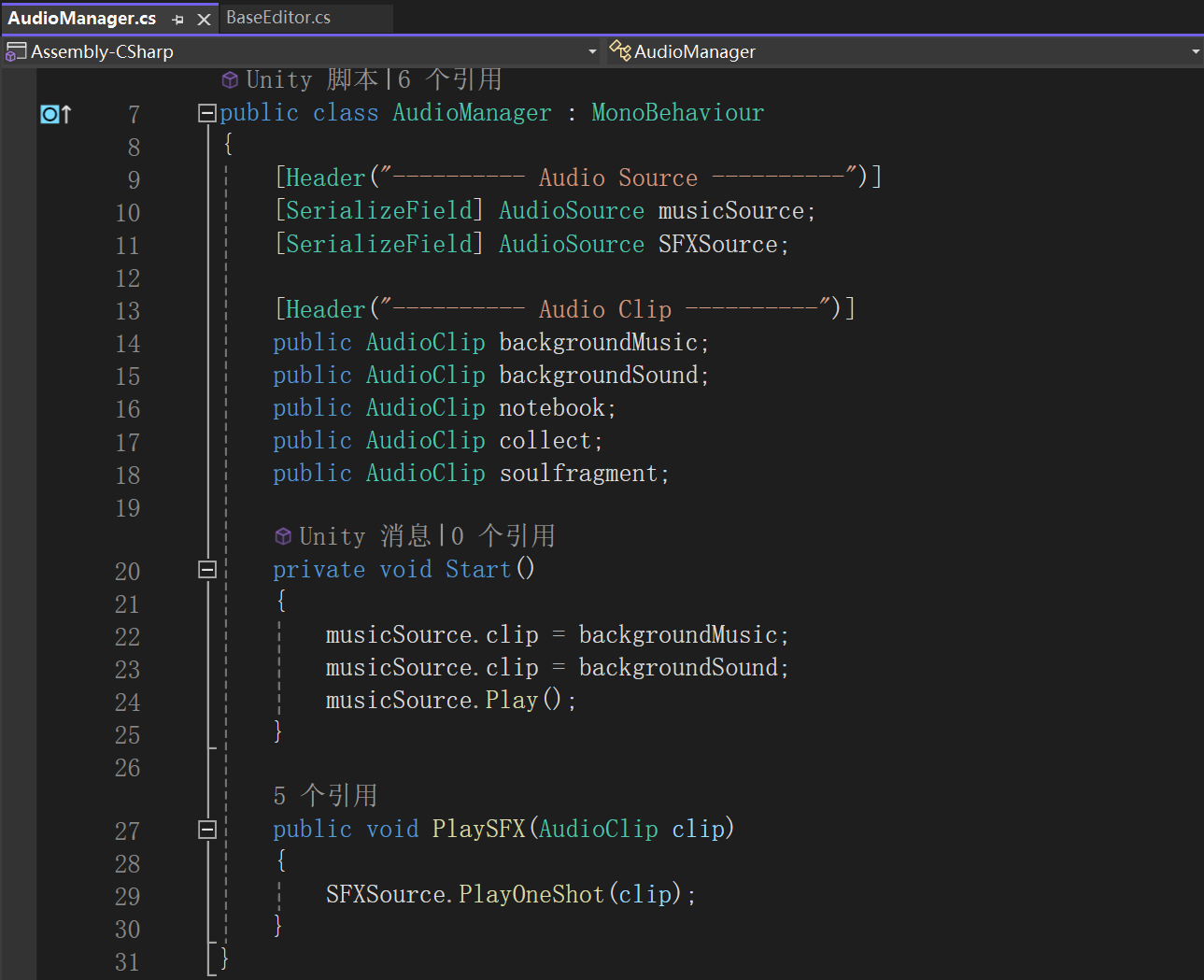
Within Unity, the Audio Manager is implemented as a MonoBehaviour script attached to the GameObject. The script separates music and sound effects (SFX) into different Audio Sources, allowing independent control over background ambience and interactive feedback sounds.
The background audio clips are assigned to the music Audio Source and automatically played when the scene begins, ensuring consistent ambient sound. The PlaySFX(AudioClip clip) function allows other gameplay systems to trigger sound effects through a unified method, using PlayOneShot() to play interaction sounds such as collecting items or opening UI elements without interrupting the background music.
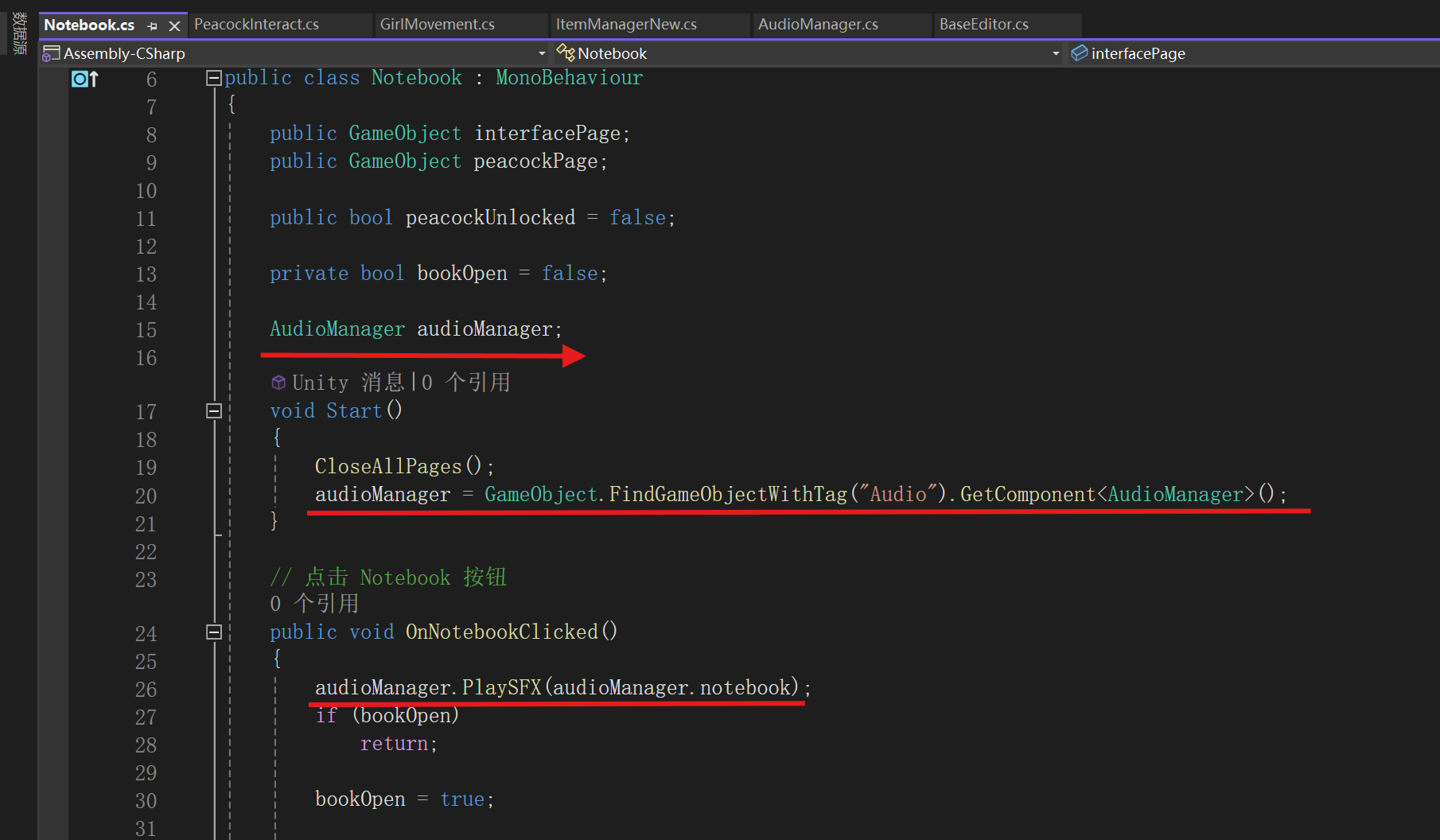
These sound effects are triggered through scripts attached to interactive game objects. To play a specific sound, the object’s script must first reference the Audio Manager within the scene. For example, in the notebook interaction script, the Audio Manager is located using FindGameObjectWithTag("Audio") and stored as a variable. When the player clicks the notebook UI, the script calls the PlaySFX() method and passes in the “notebook” audio clip. This ensures that the page-turn sound effect is played at the exact moment the interaction occurs, providing immediate feedback to the player and reinforcing the responsiveness of the UI.
Visual Effects
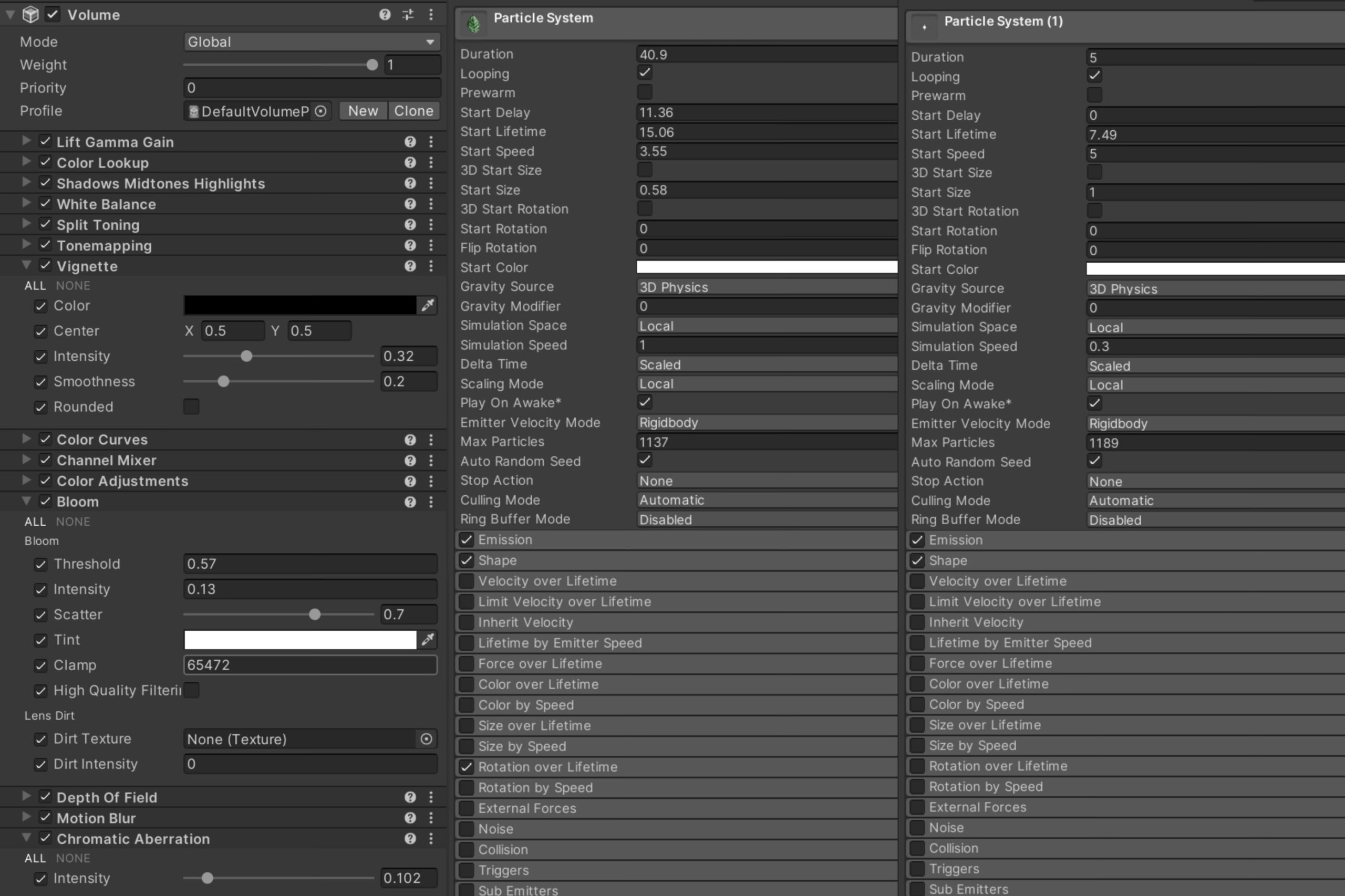
Lettie has experimented and achieved great results in visual effects in a different branch.
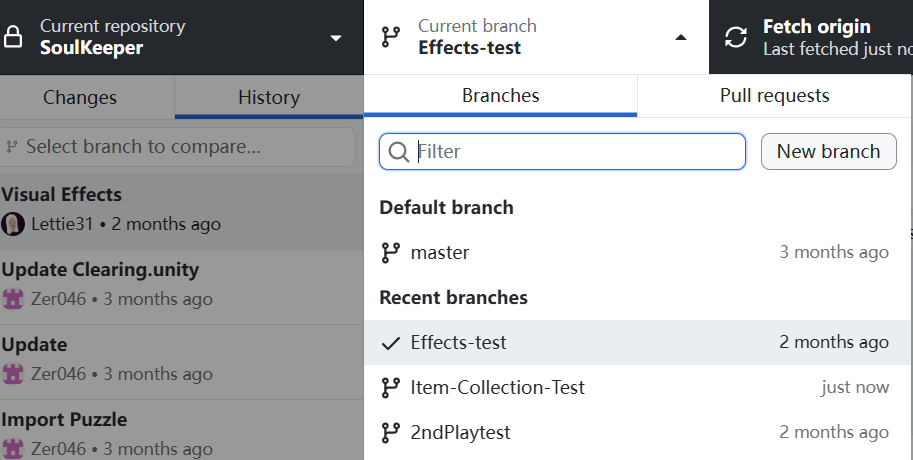
Unity Effects – Scarlett White
Afterwards, we worked together to ensure the effect works well on the main branch.
Leave a Reply