
2D Frame-by-Frame Character Animation
Tutorial for animation:
How to Setup Animator and Animations in Unity 2D
To create the player’s 2D frame-by-frame animation, I first imported the 12-frame character action sequence illustrated by Swan into Unity as sprite assets.
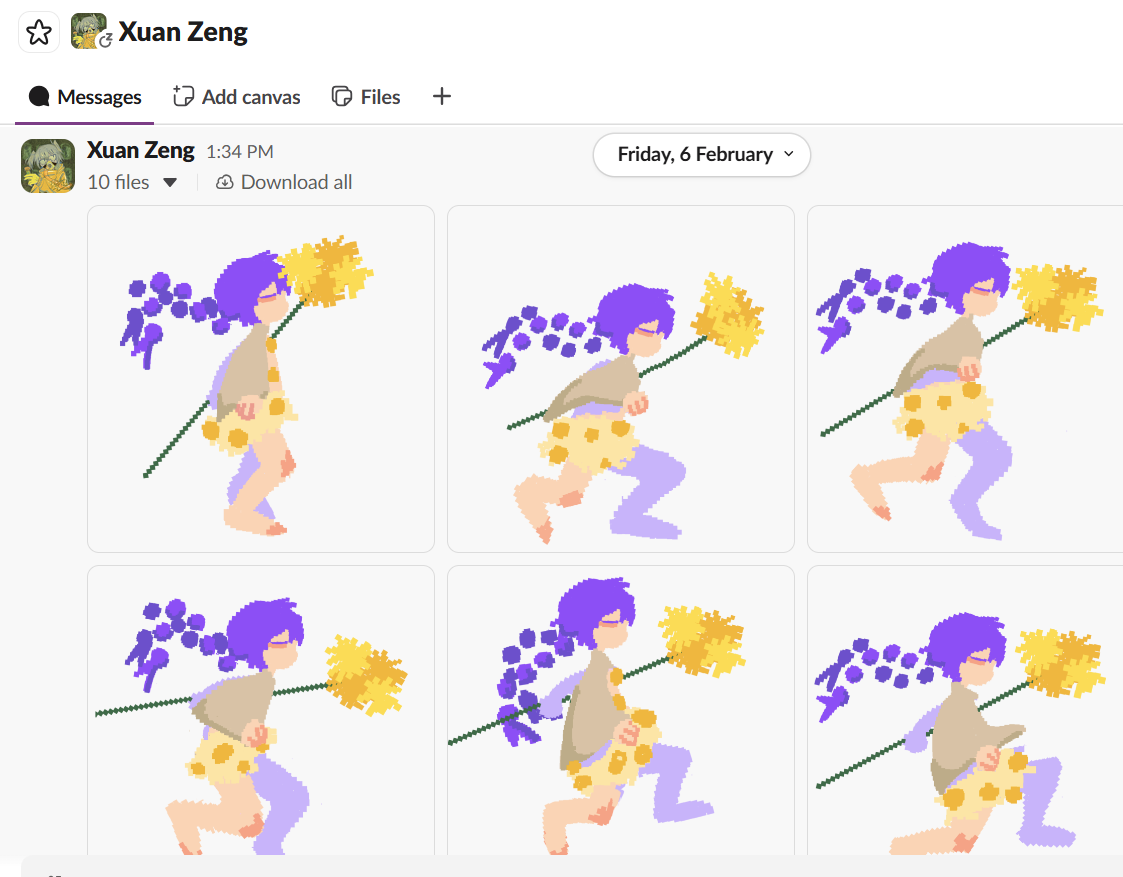
These frames were prepared as a sprite sheet and sliced using the Sprite Editor to ensure each frame could be accessed individually.

After importing the visual assets, I added an Animator component to the player character and created an Animation Controller to manage animation states and transitions.
Currently, the animation system includes two core states: Idle & Run
For each state, I created a separate animation clip and placed the corresponding keyframes into the timeline:
The Idle animation uses its dedicated frame sequence and loops continuously.
The Run animation uses the 12-frame action sequence to create fluid movement.
I then set up transition conditions between the two states inside the Animator:
A parameter (e.g.,
isRunningas a bool) determines whether the character transitions from Idle to Run.When the player provides movement input, the parameter switches to true, triggering the Run animation.
When no movement input is detected, the parameter resets to false, returning the character to Idle.
To refine the animation feel, I adjusted:
The frame rate (Samples value) of each animation clip
The spacing between keyframes in the Animation window
The loop settings ensure seamless playback.
By fine-tuning the timing between frames, I was able to control the perceived weight and responsiveness of the character’s movement. A faster frame interval makes the run feel more energetic, while a slower interval adds heaviness or calmness.
Art Assets Iteration
The character animation shown earlier was a draft I used to test this feature.
Once Lettie, who is responsible for character art and animation, had finished the final artwork, she emailed me every single frame.
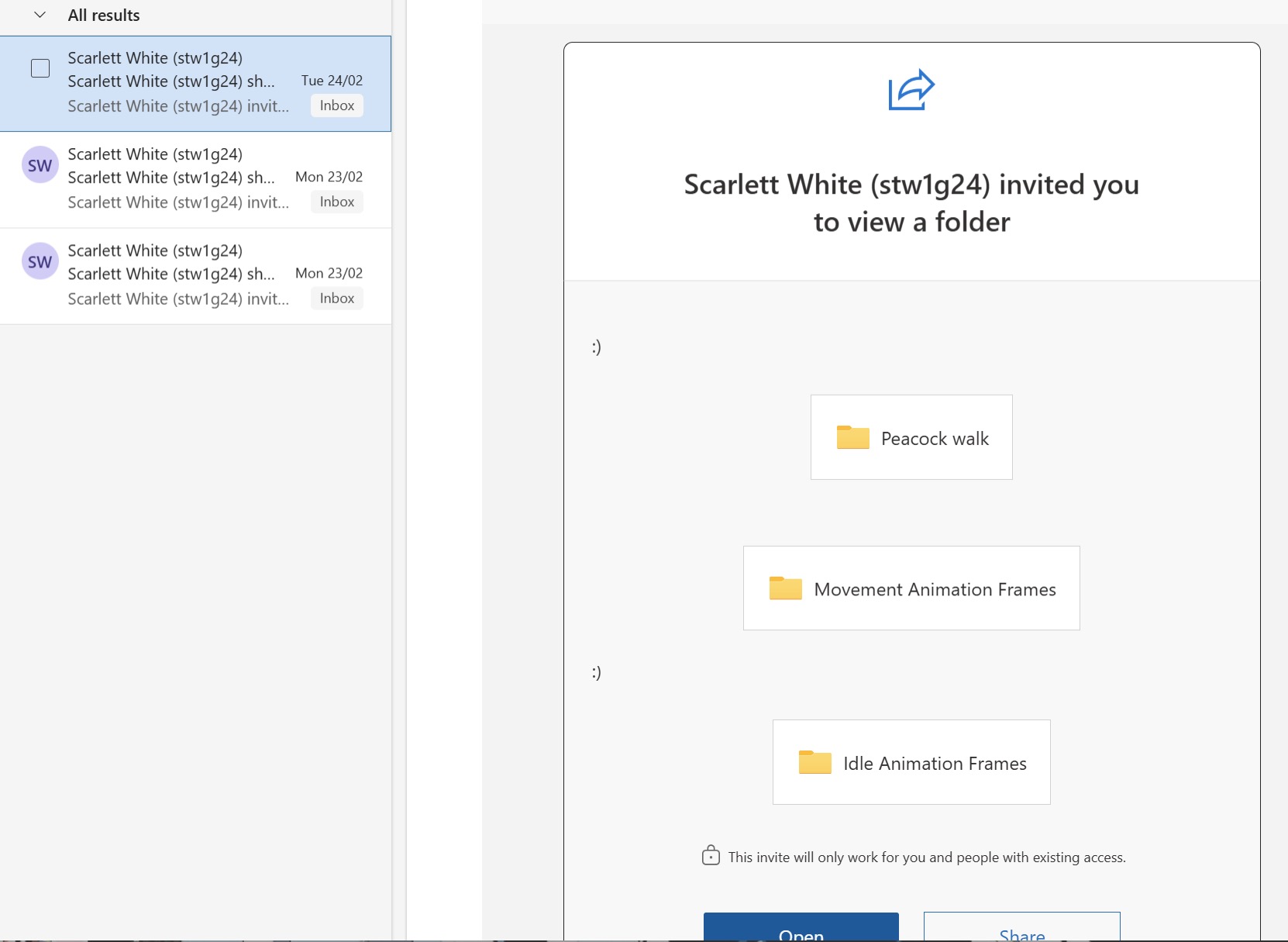
I imported them into the Unity engine and, following the previous steps, added each frame to the Animator.
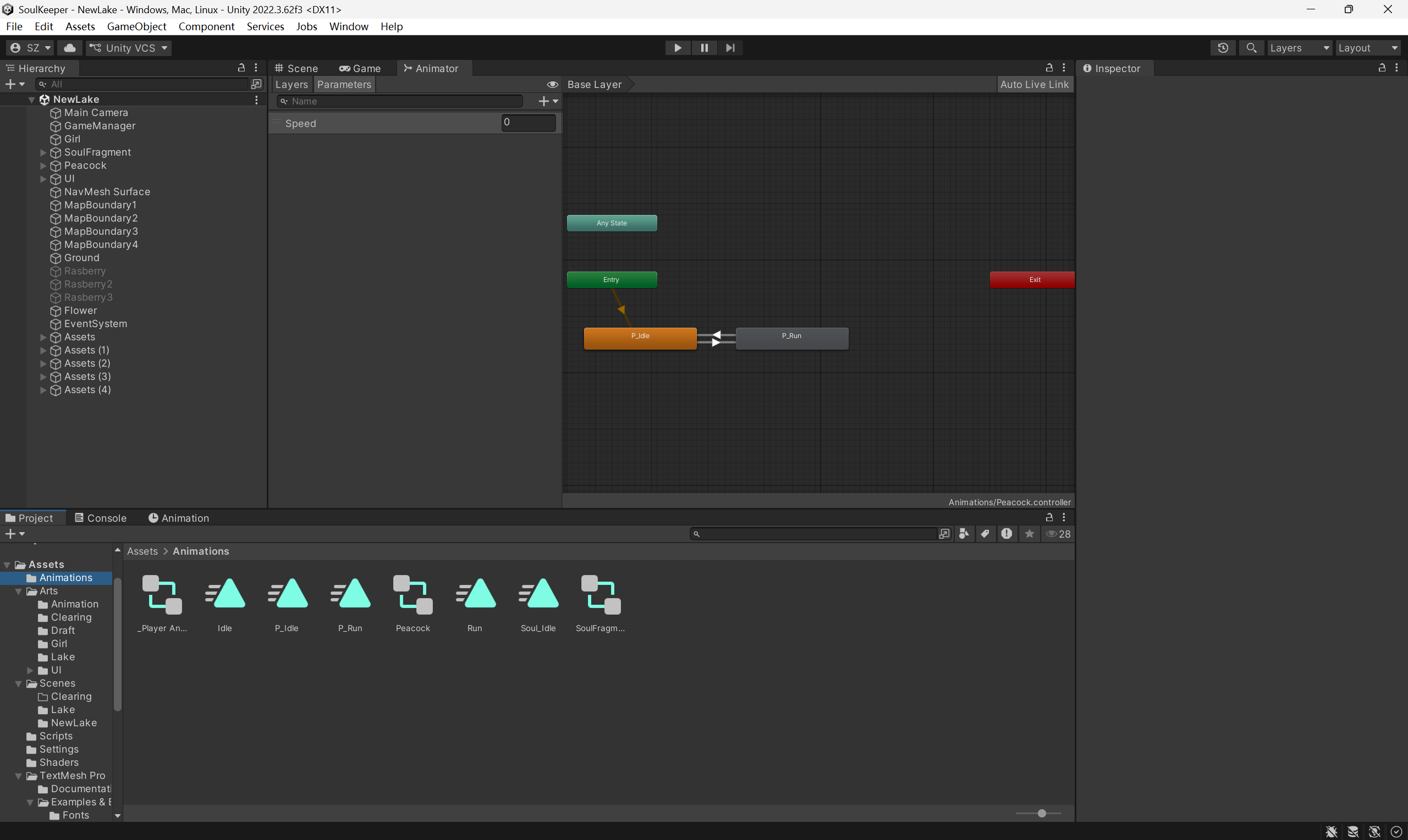
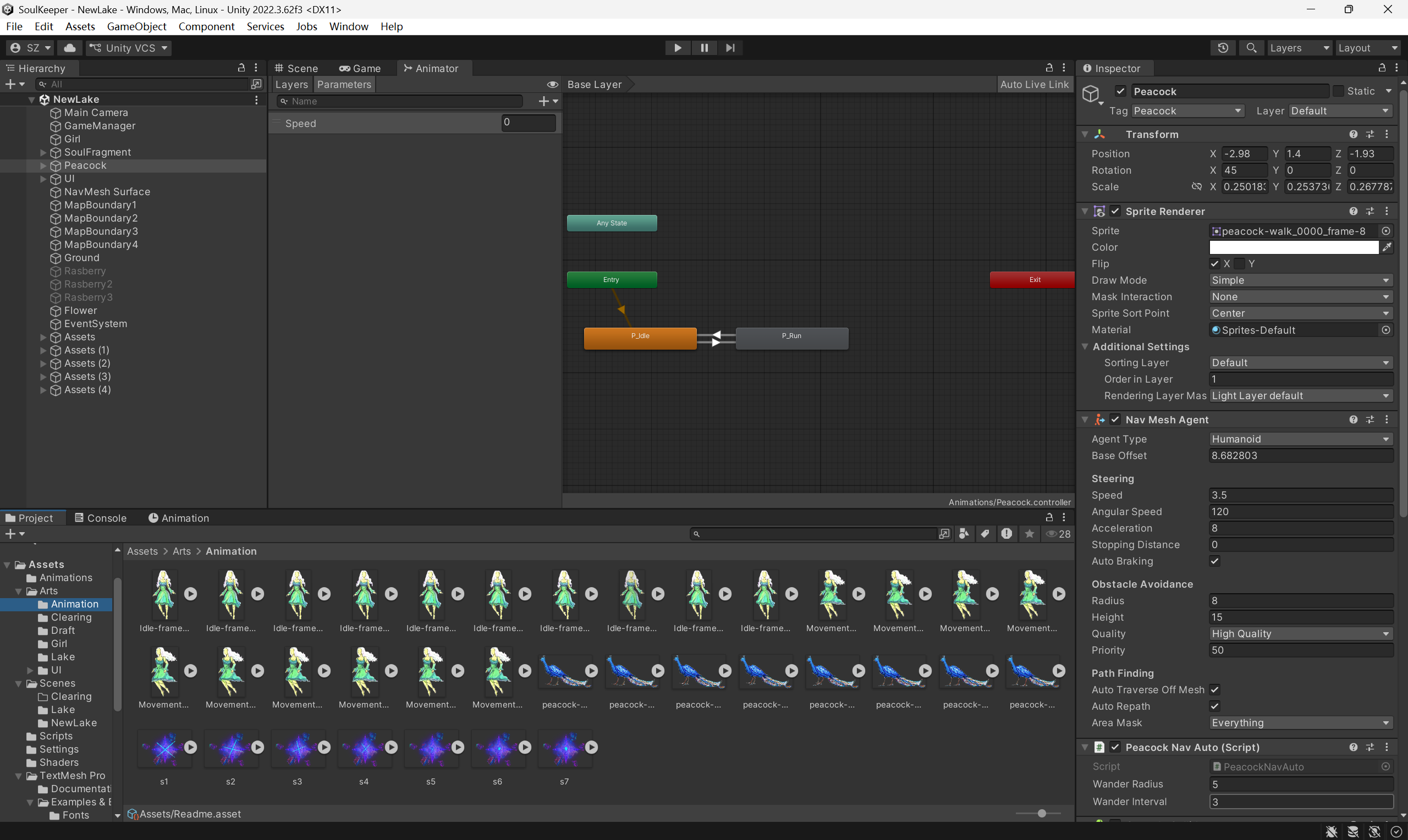
By continuously adjusting the timing between frames to achieve the smoothest possible animation.
So far, the player character and peacock animation are done.
Week 5 Player Experience & Iteration
Since there is some feedback from our first playtest, said that the soul fragment should be more obvious and have a special visual effect. Swan drew a series of animations and sent them through Slack to me.
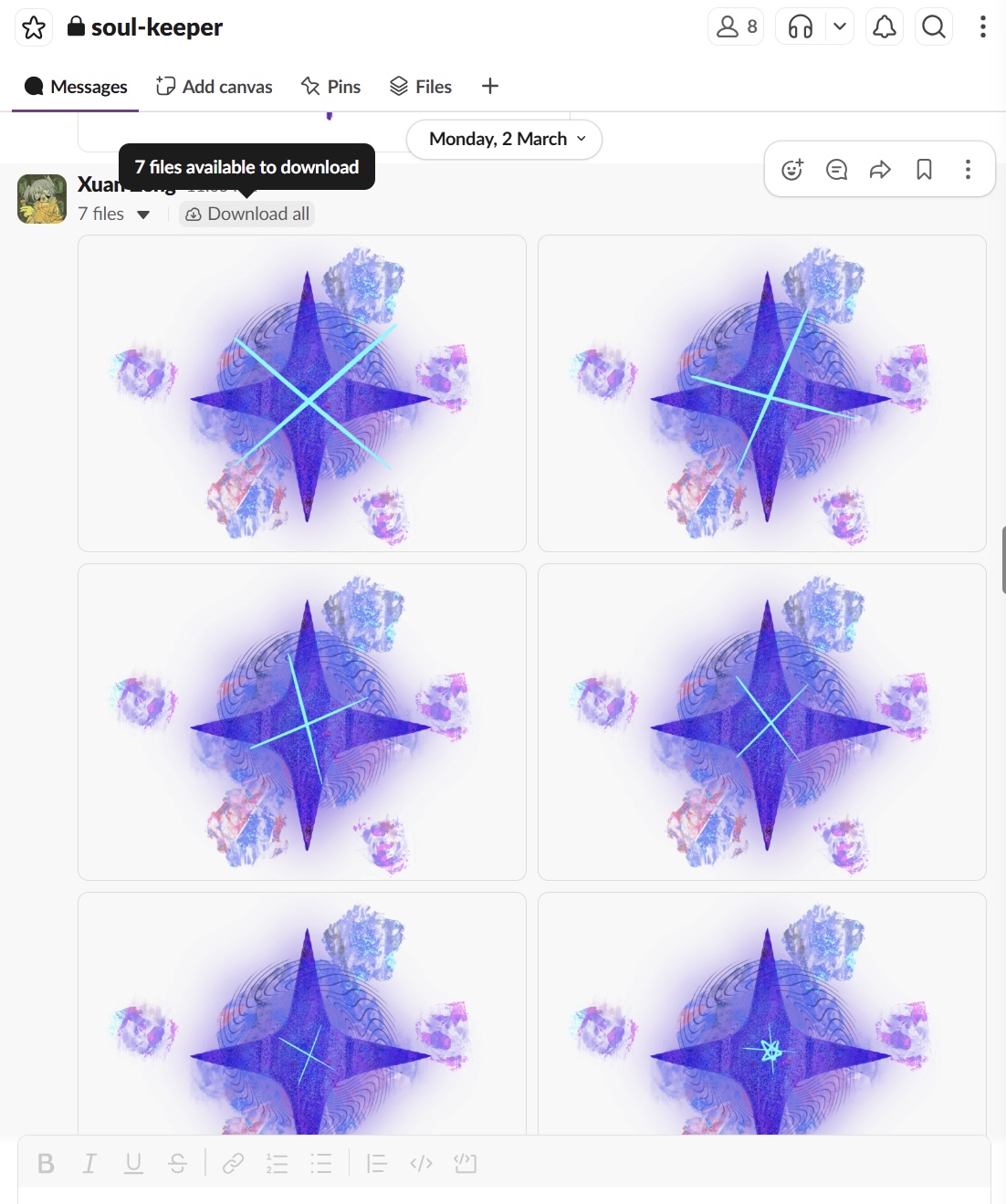
Those animations went well in our game. See the following video:
Leave a Reply