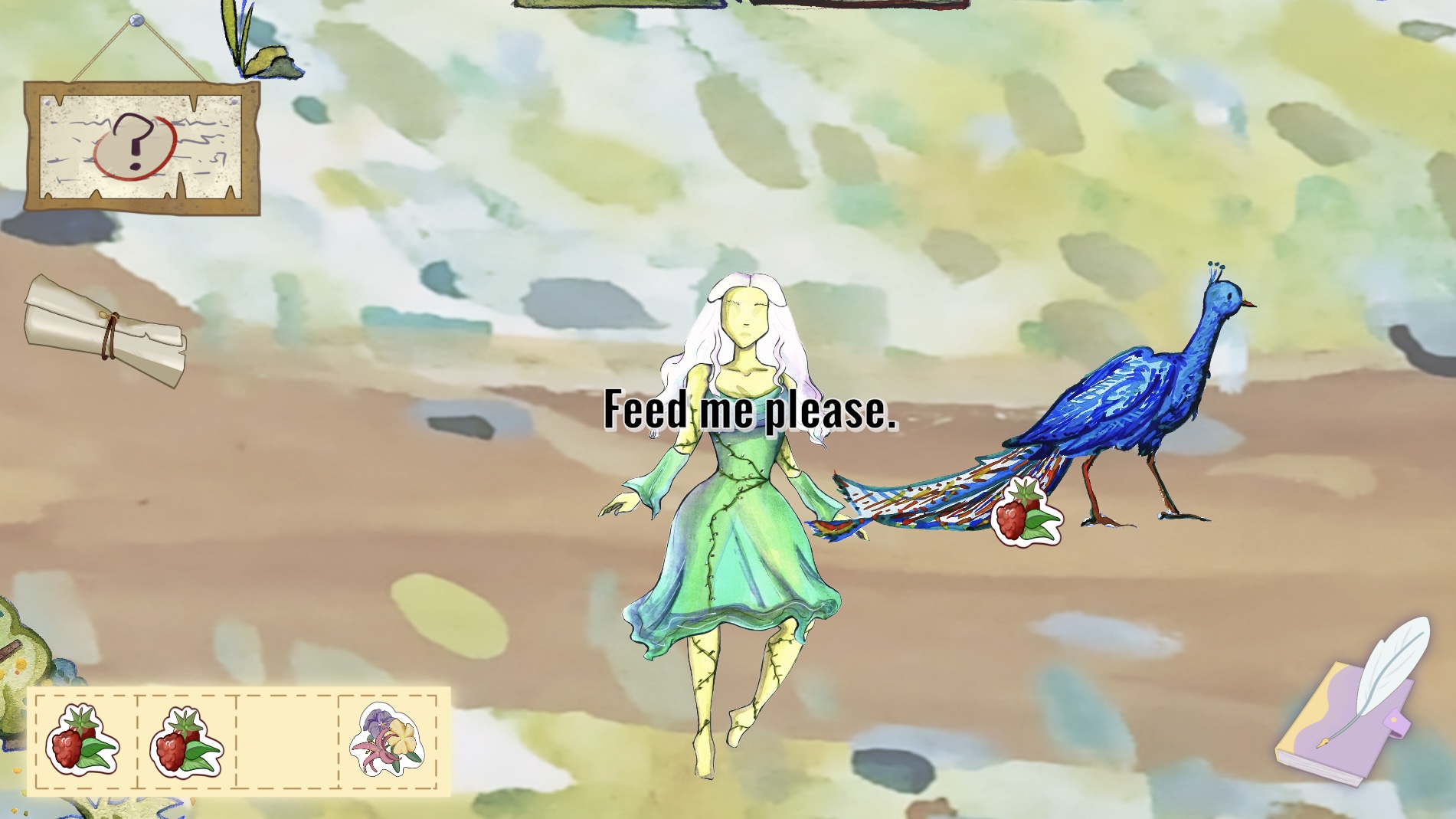
3. Draggable Items and Interaction
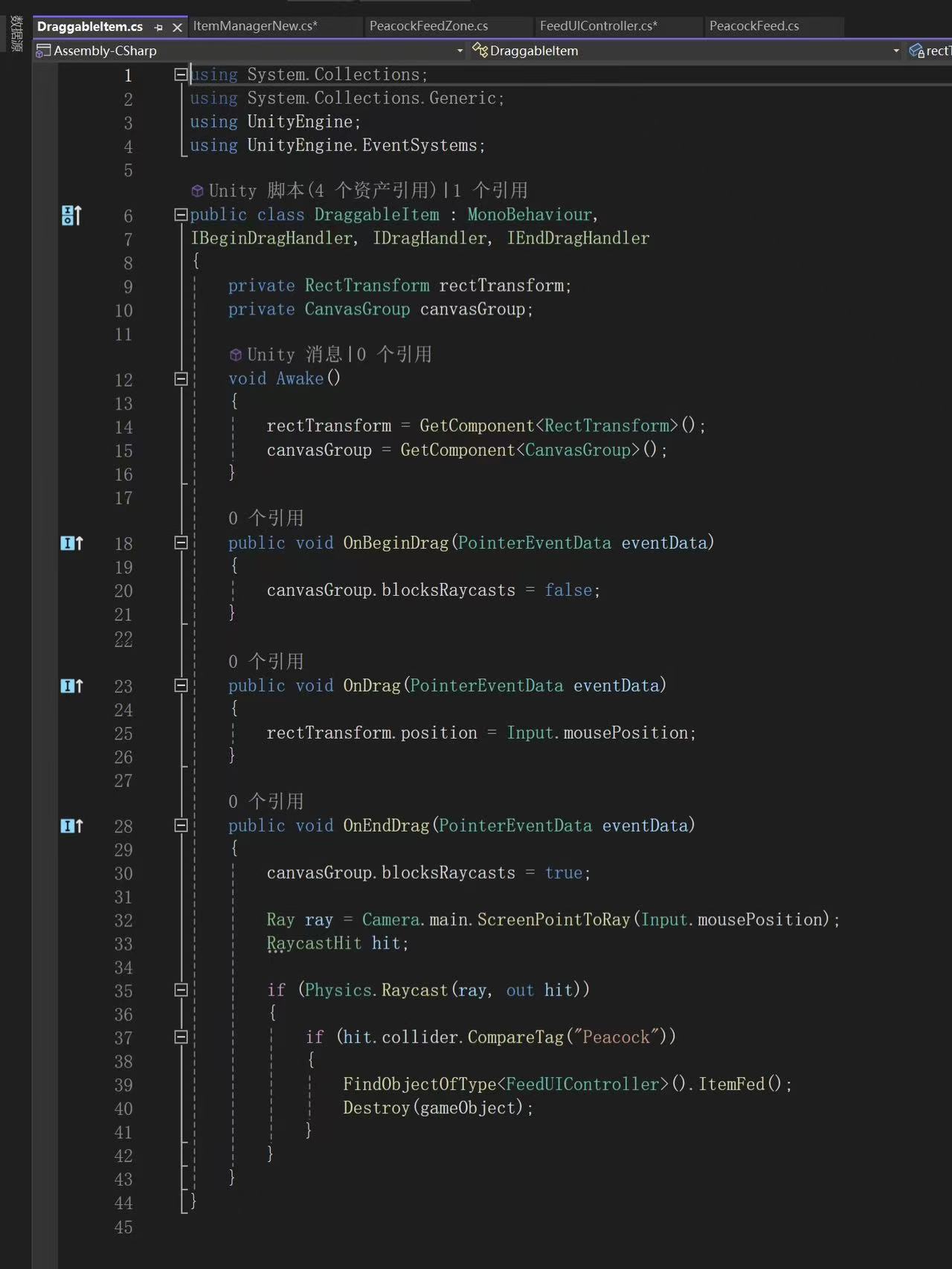
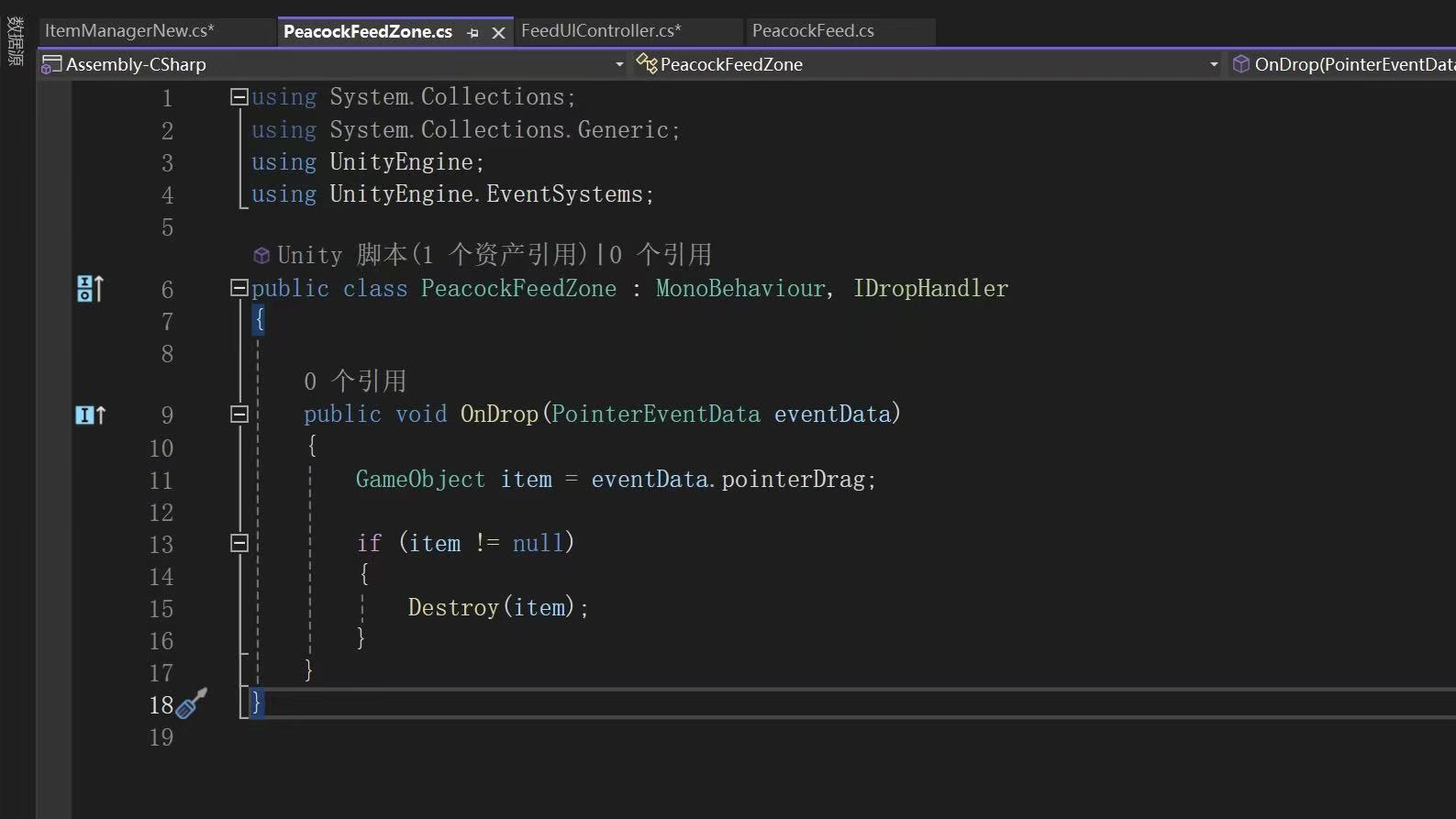
To allow players to move items freely, the objects respond to mouse dragging. When the player starts dragging an item, the object temporarily disables its raycast blocking so other objects can detect it.
While dragging, the UI element’s position continuously updates to match the mouse cursor. This creates the visual effect of the item following the player’s hand.
When the drag ends, the system checks whether the object was released on the peacock. Instead of relying solely on UI drop detection, a raycast from the camera to the mouse position is used to determine whether the cursor is pointing at the peacock object. This approach allows the peacock to remain a world object rather than a UI element.
If the raycast detects the peacock, the item is considered successfully fed, and the object is removed from the scene.
4. Tracking Feeding Progress

To manage the feeding process, the system counts how many draggable items exist in the scene at the beginning of the interaction. This value represents how many items the player still needs to feed to the peacock.
Each time an item is successfully dropped on the peacock, the remaining item count decreases. This provides a simple way to track whether the feeding task has been completed.
When the count reaches zero, the system recognises that the player has fed all available items. Then close the “Feed me” UI for instruction at the beginning.
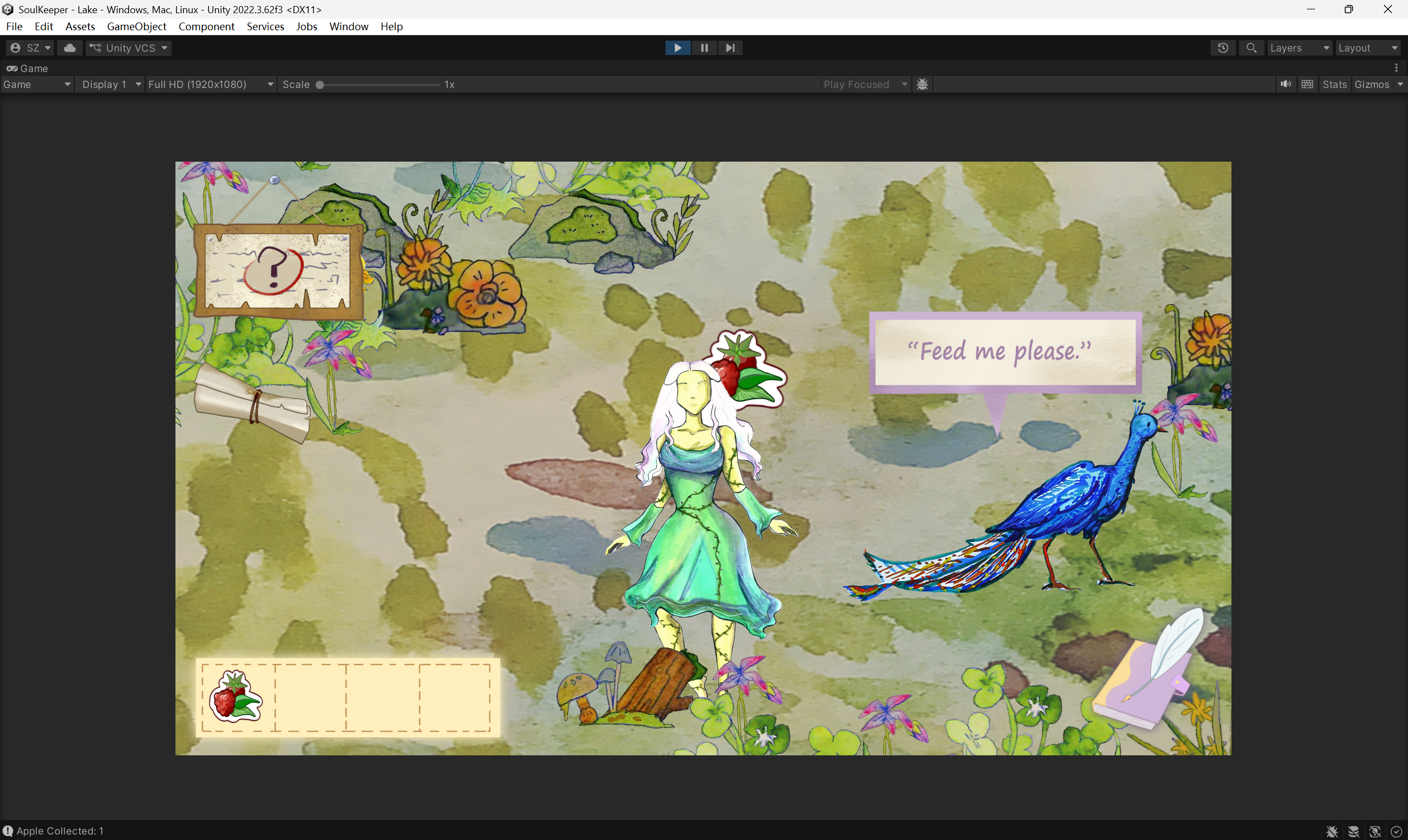
To ensure that the ‘Please feed me’ UI looks more natural, I spoke to Swan, our UI artist. I asked her to draw inspiration from the notebook UI in the bottom-right corner of the game and design a dialogue box for the peacock. Then I make it follow the peacock as it moves, rather than simply displaying text.
Leave a Reply to Mechanics Design & Coding Development – Soul Keeper Cancel reply