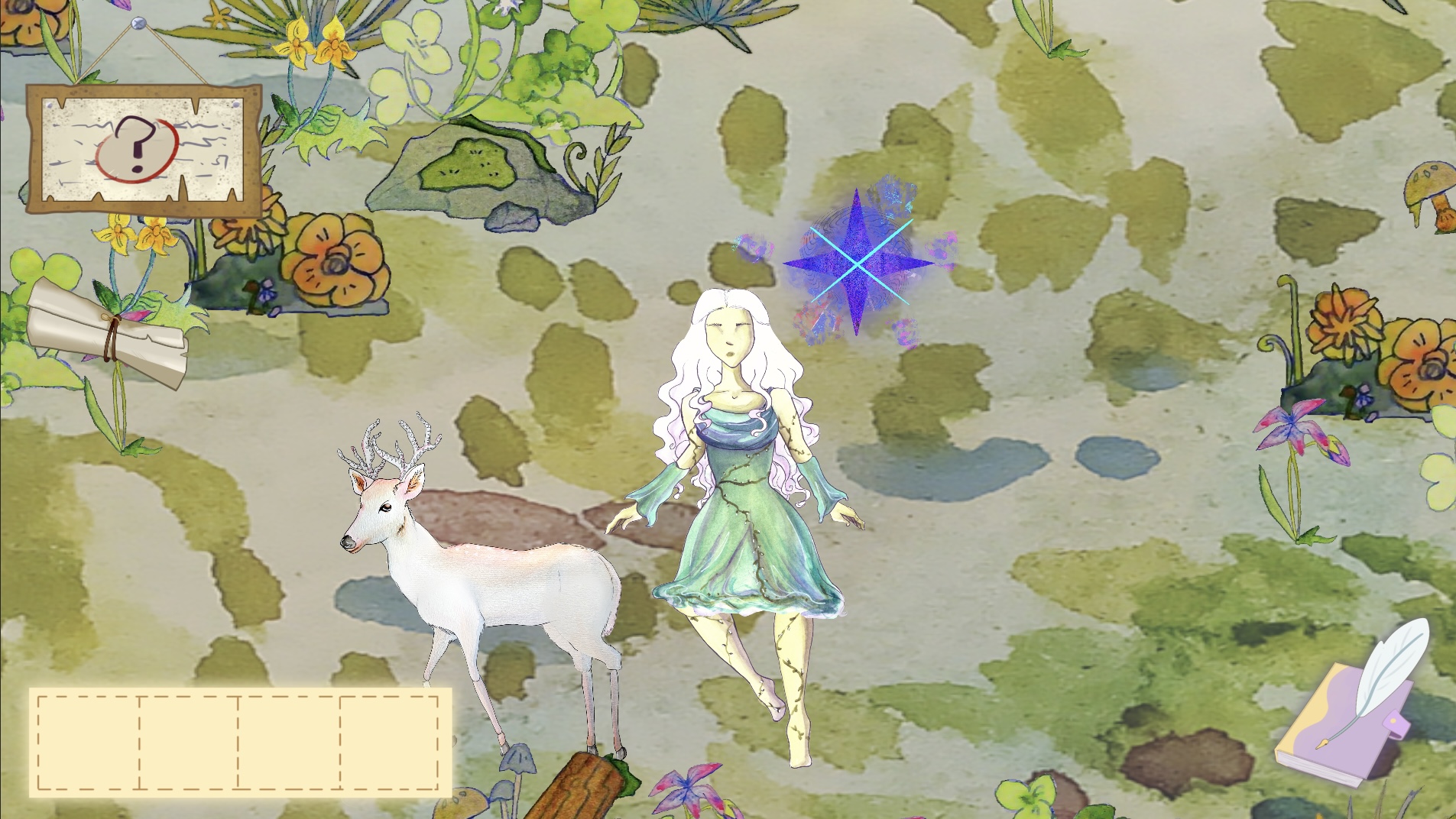
Creating the Lake Scene
Swan has sent me the Art assets of the lake scene, including the background and the plants, through Slack.
I downloaded them and import it to the unity.

Adjusting Composition
After importing the art assets and setting up the scene, I had a discussion with Swan. I invited her to review the composition in the engine to see if it matched her vision.
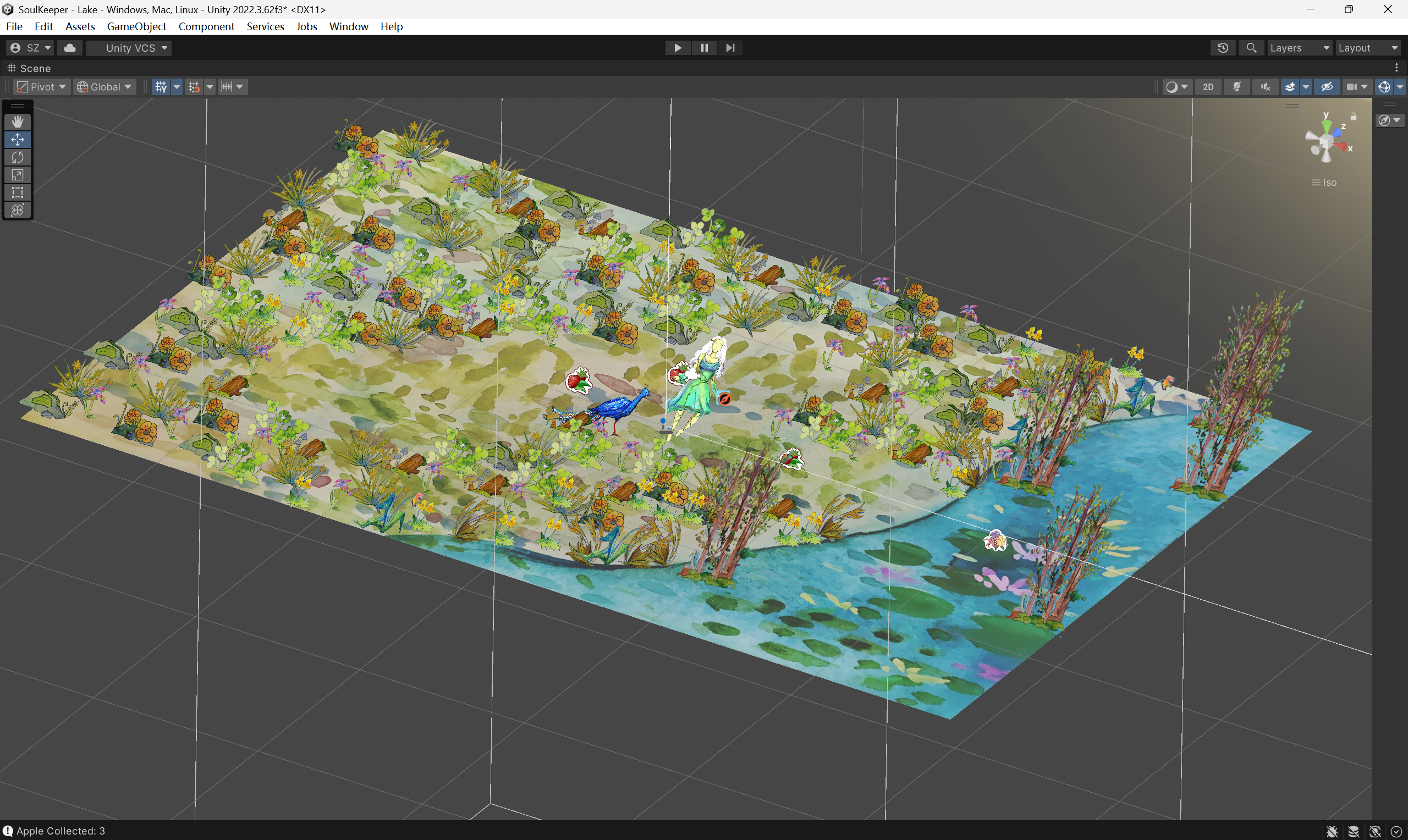
We identified the following issues and their corresponding solutions:
- The ground in the scene appears blurred and dark in the engine. We will achieve a better visual effect by copying and stitching together multiple ground textures, increase the brightness.
- When the player approaches the edge of the map, the camera captures space. We will create a natural barrier by using mountain art assets to block the edge of the map.
- The number of plants is not enough; more need to be added. The scene should be filled with plants, leaving only the designated paths for the player to walk on clearly.
- There is a lack of plant variety, resulting in an overly repetitive scene. Additional plants need to be created.
Refined Version:
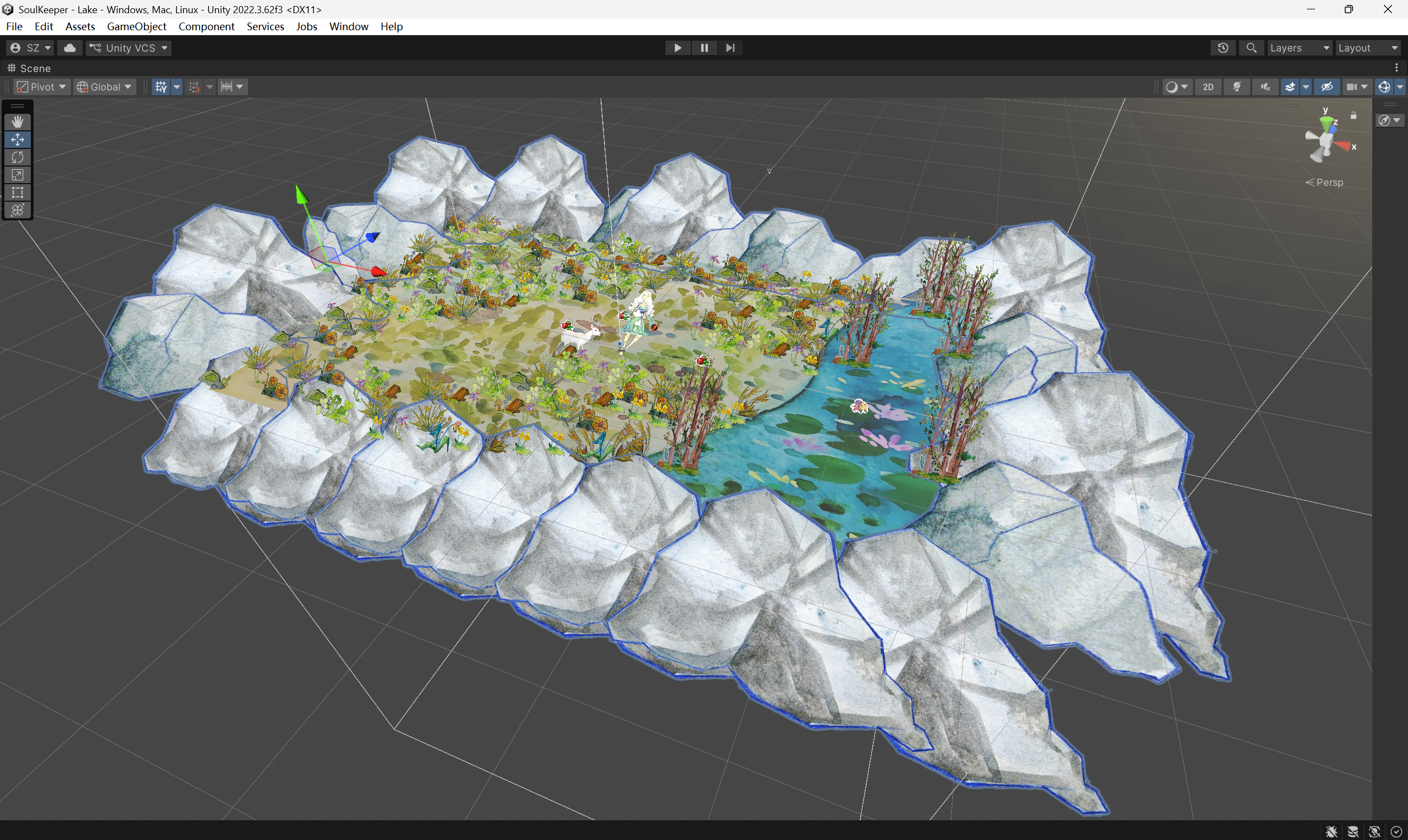
Add and change art assets.

Art Iteration example:
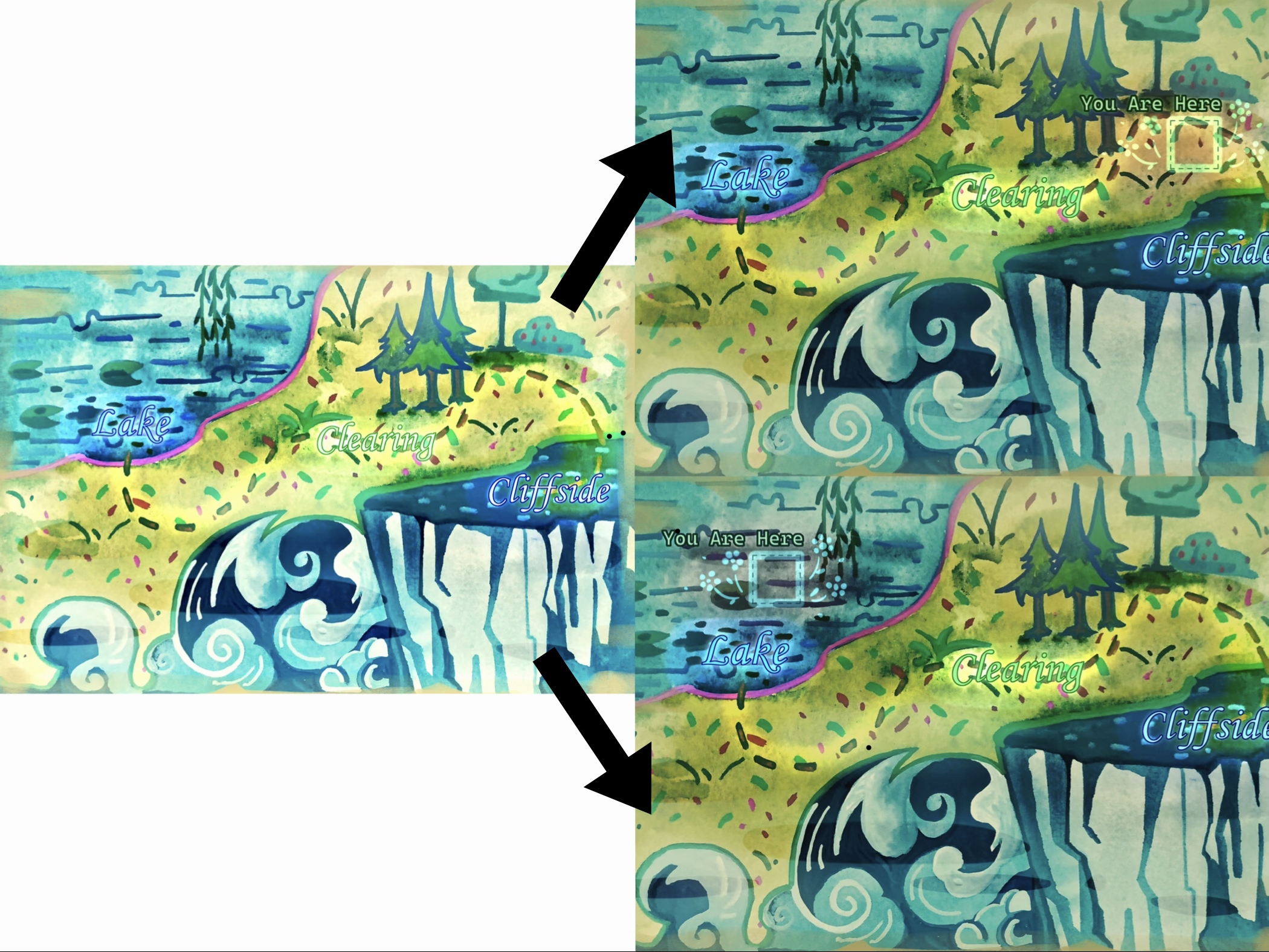
During my own playtesting, I identified an opportunity to improve spatial awareness and player navigation through clearer visual guidance on the map UI. While the map already provided an overview of the game world, it lacked a clear indicator of the player’s current location, making it harder for players to understand their exploration progress or orient themselves efficiently.
To address this, I proposed adding a positional marker on the map interface to indicate the player’s current region. This feature allows players to quickly understand where they are within the broader world, while also helping them track explored versus unexplored areas. As a result, the map became both a navigational tool and a visual representation of player progression.
Complete Game loop
During this phase, I created and built all the scenes and core gameplay mechanics required for the game. I organised them into the following gameplay flow:

Start Menu
The player begins at the Start Menu and selects Start to begin the game.
↓

Opening
An Opening sequence introduces the background and provides basic gameplay instructions to guide the player.
↓
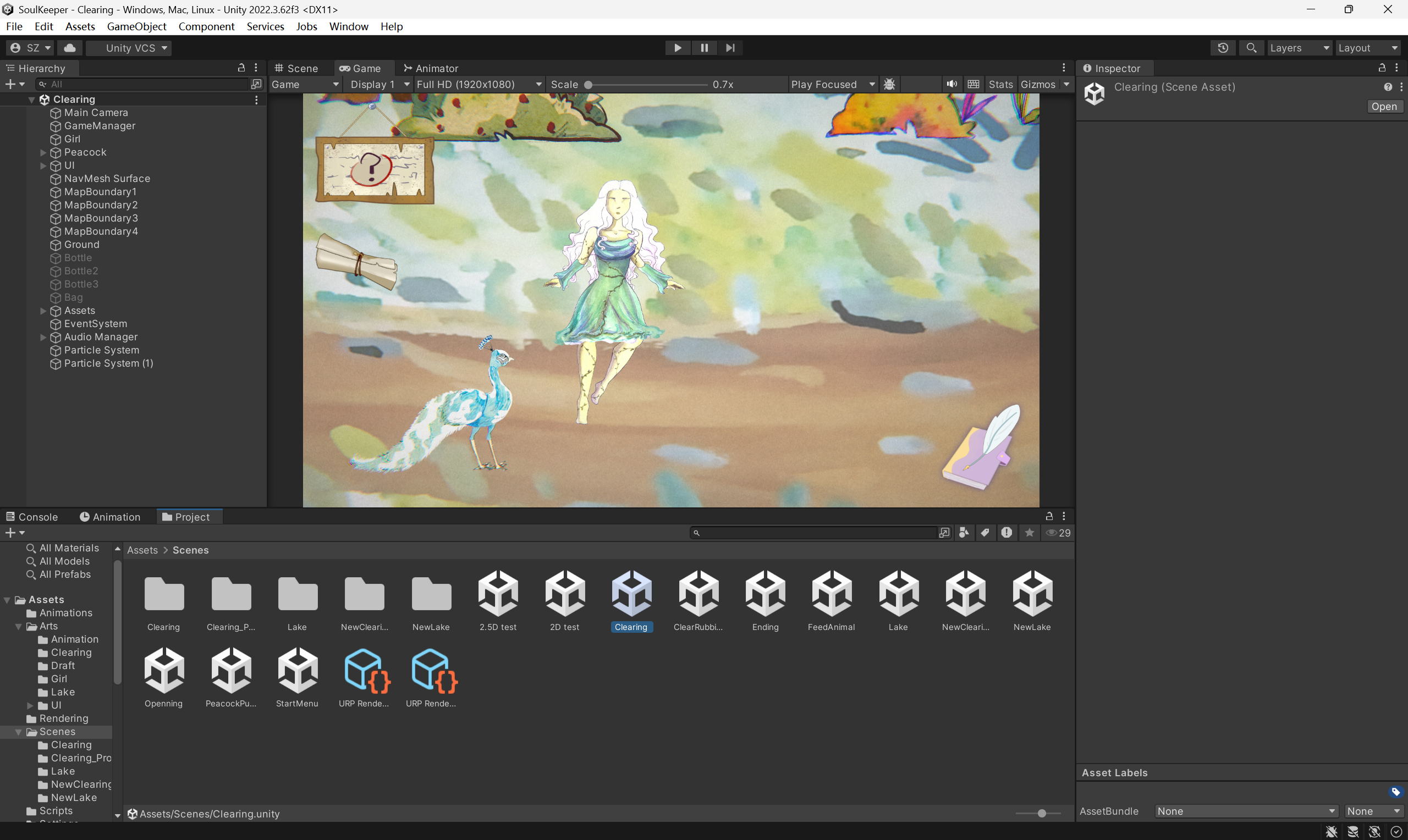
Clearing Scene
The player enters the first playable area: the Clearing.
Here, the player encounters a Peacock and can interact with it to trigger the first task.
↓

Peacock Minigame(Developed by Ollie)
The player must hold down the mouse button to wipe away the dust on the peacock, revealing its original vibrant colours.
↓
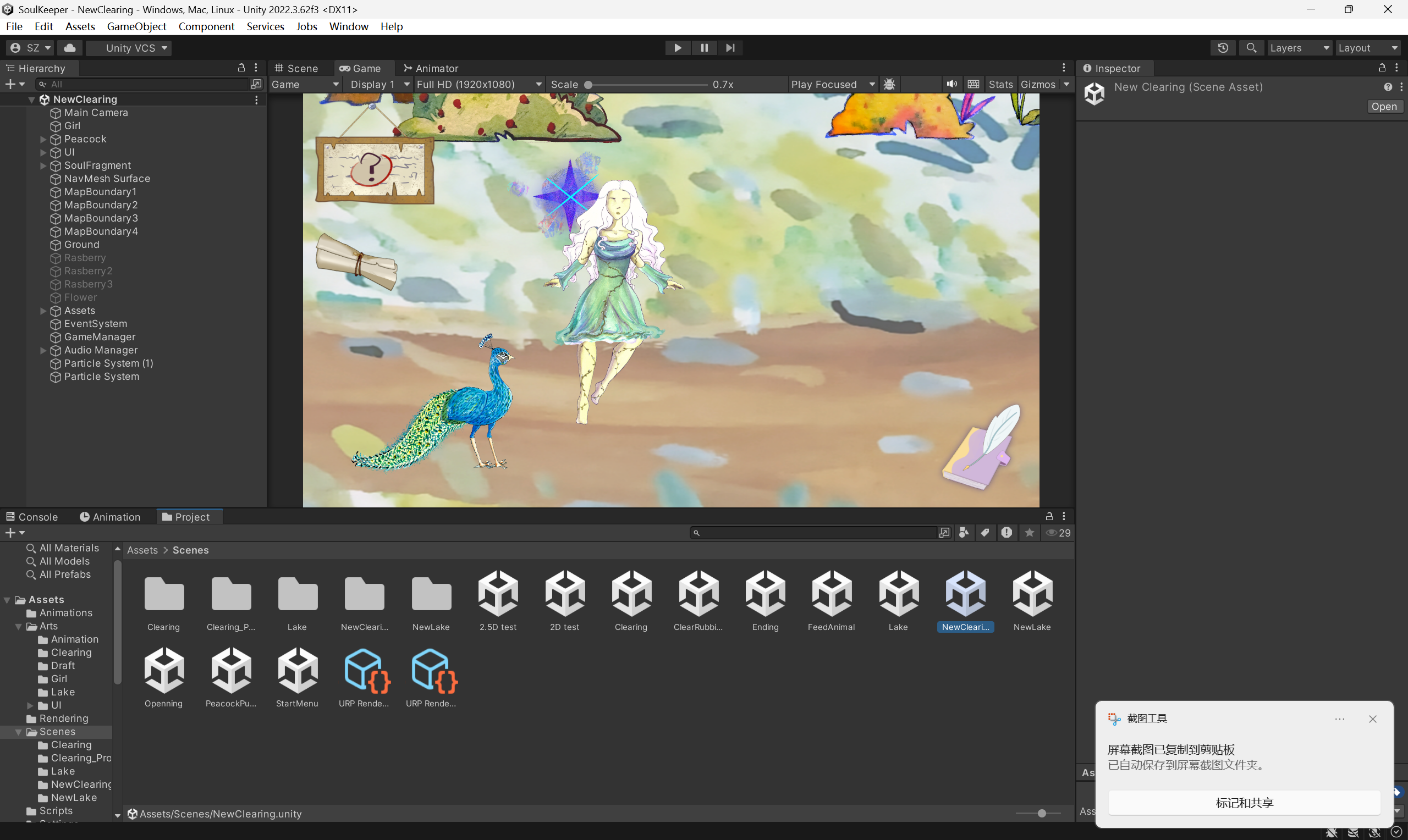
Return to the Clearing
After completing the minigame, the player returns to the Clearing scene.
A Peacock Soul Fragment appears. Interacting with it will:
- Unlock the Peacock entry in the Notebook
- Unlock the next area
↓
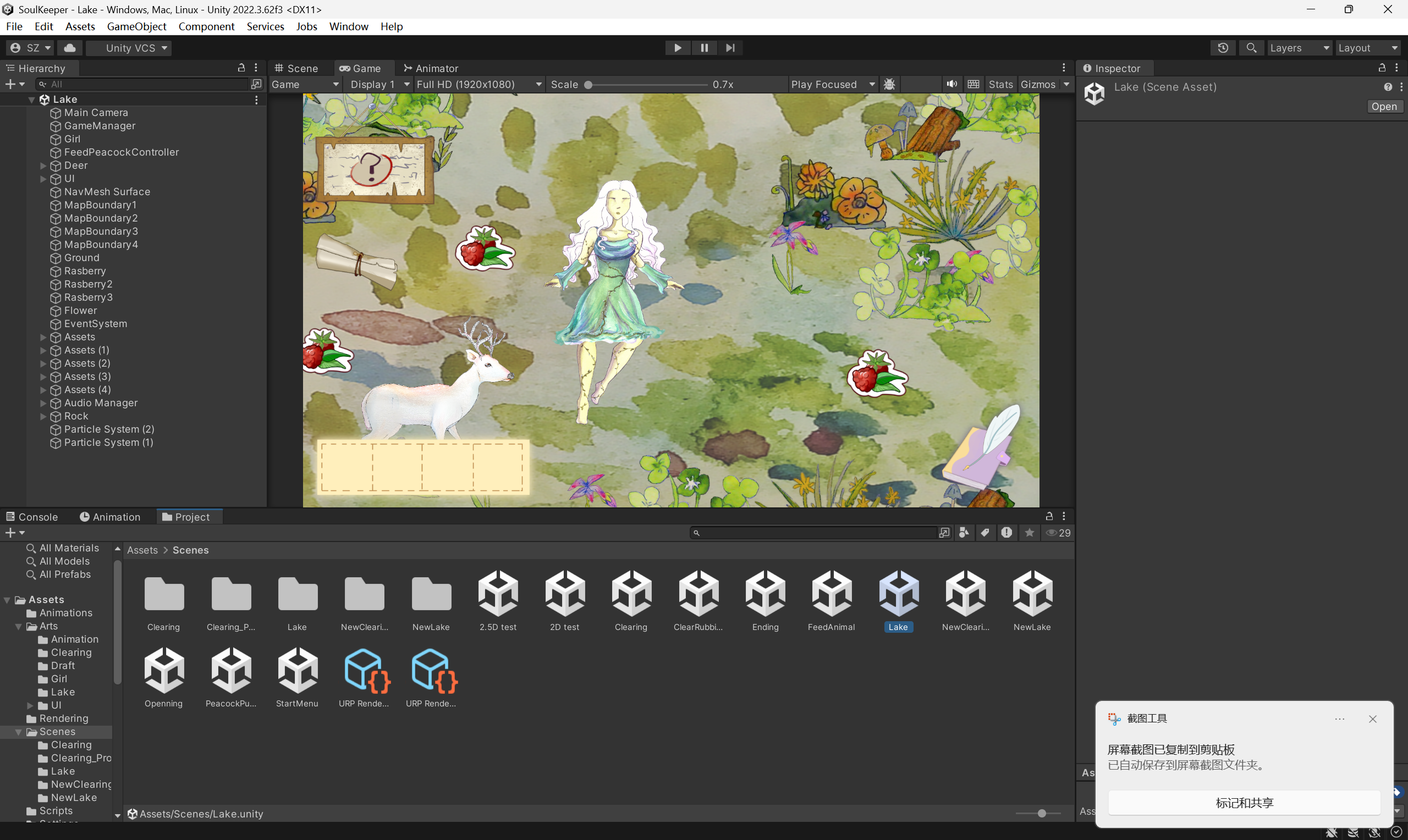
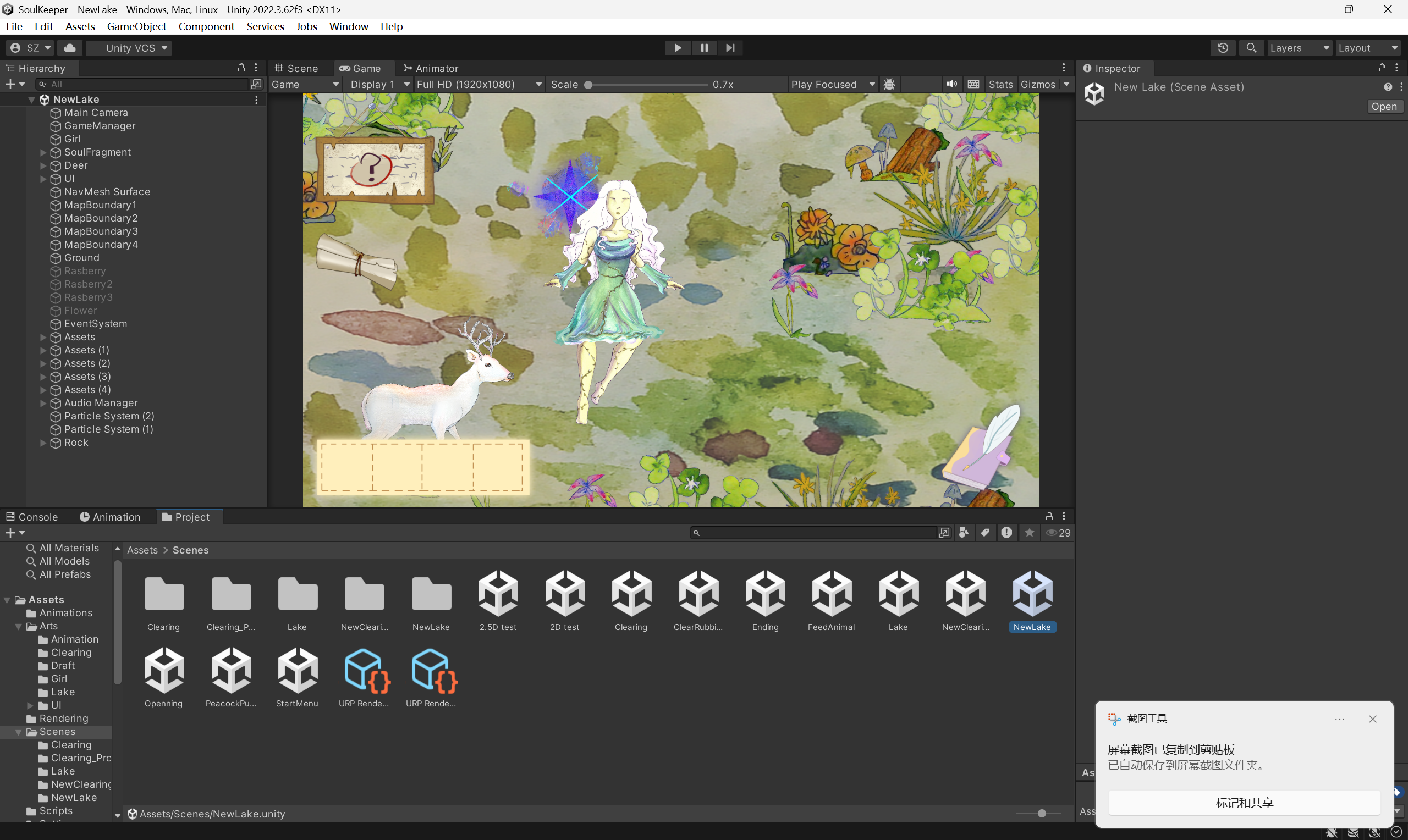 Lake Scene
The player travels to the Lake. In this area, the player:
- Collects resources
- Feeds the deer
- Interacts with the deer after feeding it
- Gets the Deer Soul Fragment
- Unlocks the Deer entry in the Notebook.
↓

Ending
Game over, exit or back to the start menu.
Sound and Visual effects added:
Leave a Reply to Second Playtest – Soul Keeper Cancel reply