The video shows cut scene:

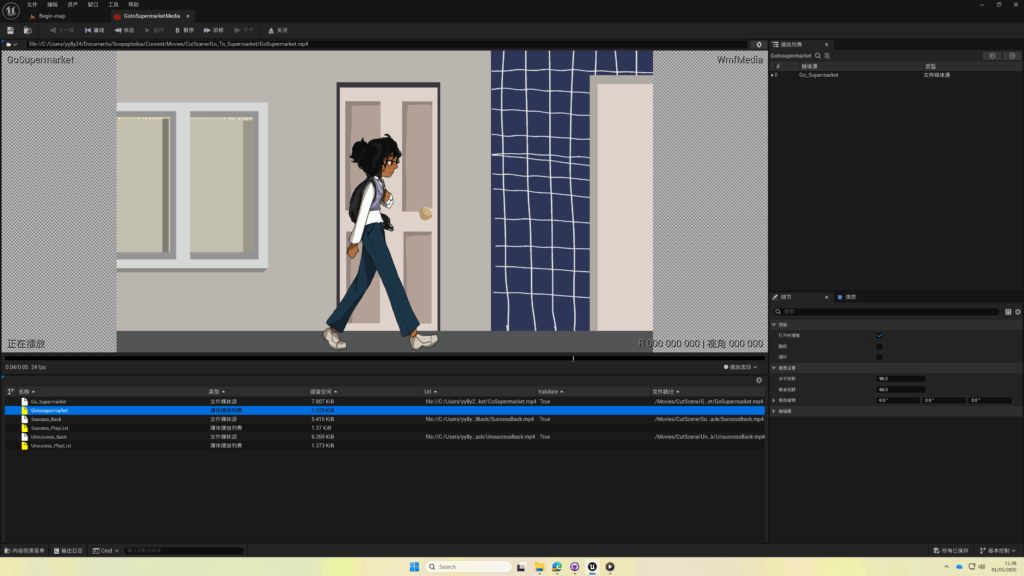

First, create a folder called ‘Movies’. The folder must be named ‘Movies’; if you use any other name, UE5 will be unable to package the cutscenes during the build process, and the cutscenes will disappear from the final project.
Next, right-click the ‘Movies’ folder, select ‘Show in Explorer’, and move the cutscene videos into the folder. This step ensures that the cutscene videos are present when running the project on different devices.
Once the preliminary work was complete, I created a media playlist and selected the relevant videos to add to it. I then created a media player, played the videos, and confirmed that they played correctly. I also ticked the ‘Loop’ option to ensure the videos would play on a loop.
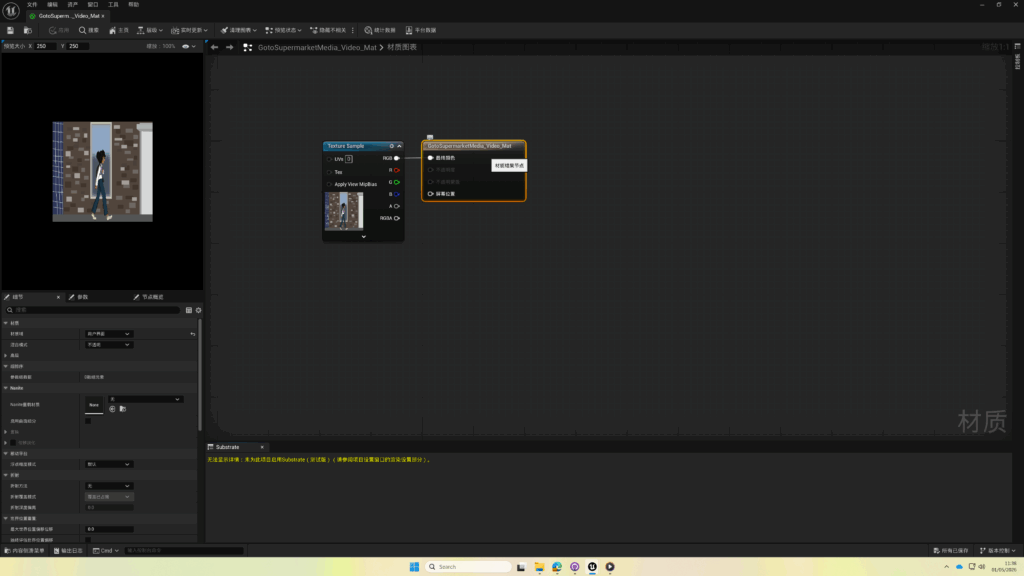
Right-click on ‘Media Texture’ to create a material. Set the material’s texture field to ‘User Interface’ and save. This ensures that the video is displayed within the user control.

Create a user control, add an image, and set the image to the material created in the previous step.
Blueprint of cut scene:

First, create a variable called GoSupermarket, with the type ‘Media Player’.
Create a custom event called ‘Play Video’. Create a widget and select the user control you just created. Then add the widget to the viewport so that it appears on the screen. Next, open the media playlist and set the variable as the target. Finally, play the video, with the ‘GoSupermarket’ variable as the target.
Finally, this custom event is triggered when the player overlaps with the collision volume.
Problems and solutions:
I use Zixuan’s computer to work on projects at the weekend, and the computers in the school computer lab during the week. The cutscene was originally created on Zixuan’s computer and worked fine there. However, when I ran it on the school computer, the screen went black.
The reason is that the cutscene videos are stored on Zixuan’s computer, and the media player references the video paths of the files downloaded to Zixuan’s computer. Consequently, the cutscenes cannot be played after switching to a different computer.
After searching for tutorials online, I learnt that when importing cutscene videos, they must be saved in a folder named ‘content’ within the project file. By saving the videos in this way, they will play on any device.
Leave a Reply